Design Protocolsinterface documentation
Language Chooser
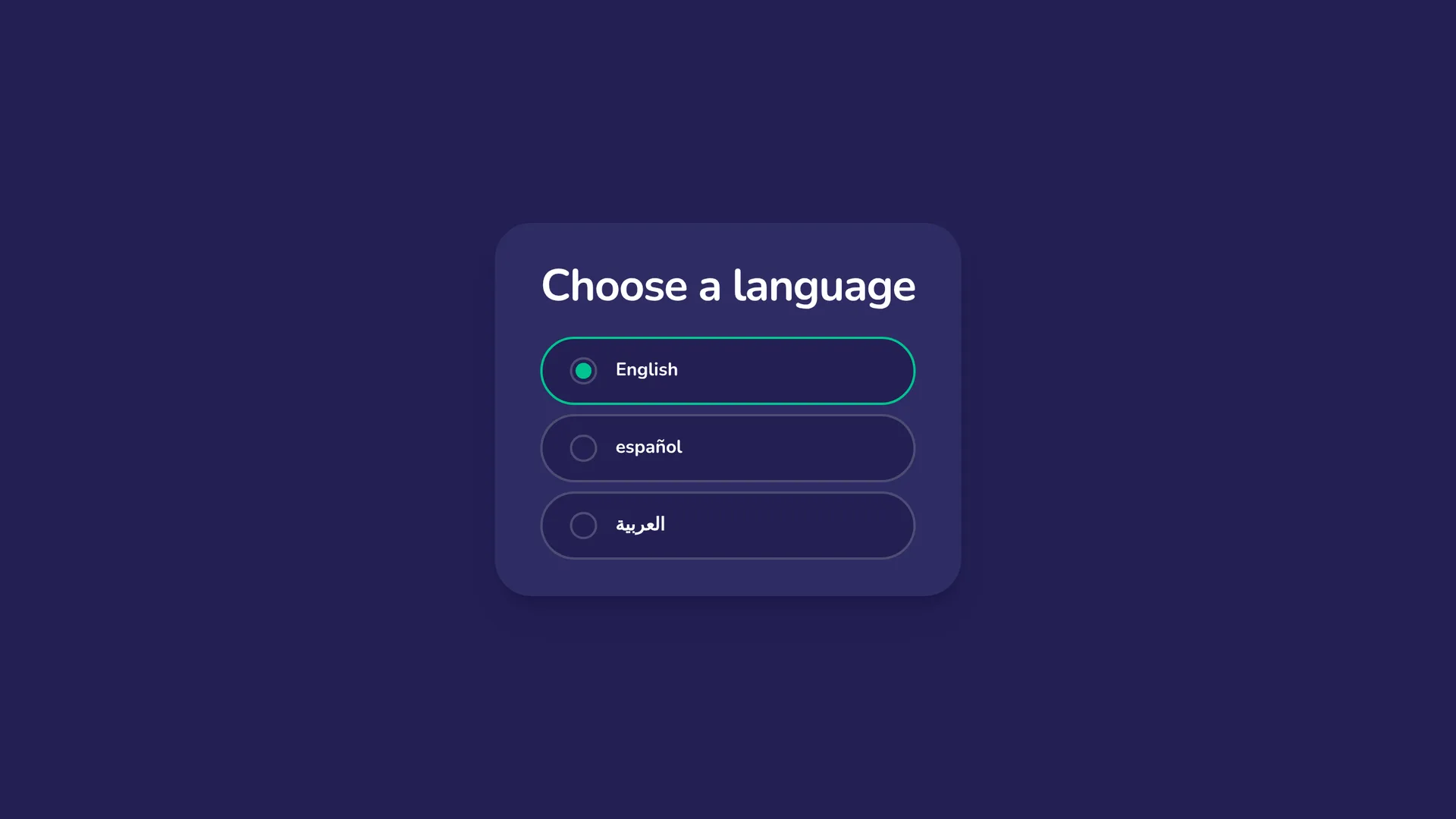
- Type
- Utility
- Creates
- Does not create entities
- Uses Prompts
- No
- Schema
- v9+
- Available In
- ArchitectInterviewerFresco
The Language Chooser interface is a screen where participants choose the language for the rest of the interview, from the languages your protocol is written in. It is useful whenever your protocol has more than one language, and you can't be sure that a participant's device or browser is set to the language they want to use.
To set up the languages a participant can choose from, see Translating Your Protocol. You can also add and remove languages in this stage's editor (see Configuring the Language Chooser).
What participants see
The screen is a heading above a list of languages. The heading can be set in your protocol, like the rest of its text: it reads "Choose a language", in each of your protocol's languages that Network Canvas has wording for, until you change it or translate it yourself (see Configuring the Language Chooser). The heading is shown in the language the interview is currently shown in, so it changes as soon as the participant picks another language.
The list contains exactly the languages your protocol is written in, in alphabetical order for the language the interview is shown in. Each language is written in its own language and script, so a Spanish speaker sees Español and a Japanese speaker sees 日本語, whatever language the screen is currently in. Languages have no other order: the order your protocol stores them in makes no difference.
The language the interview is currently shown in is already selected. When the participant picks another one, the change happens straight away: your protocol's text switches to that language, including the interview's buttons and messages that your protocol holds (see Interview text), and so does every later screen of the interview. The participant can change their mind as often as they like before moving on. A text with no translation in the language they pick appears in another of your protocol's languages (see The default language and which translation participants see).
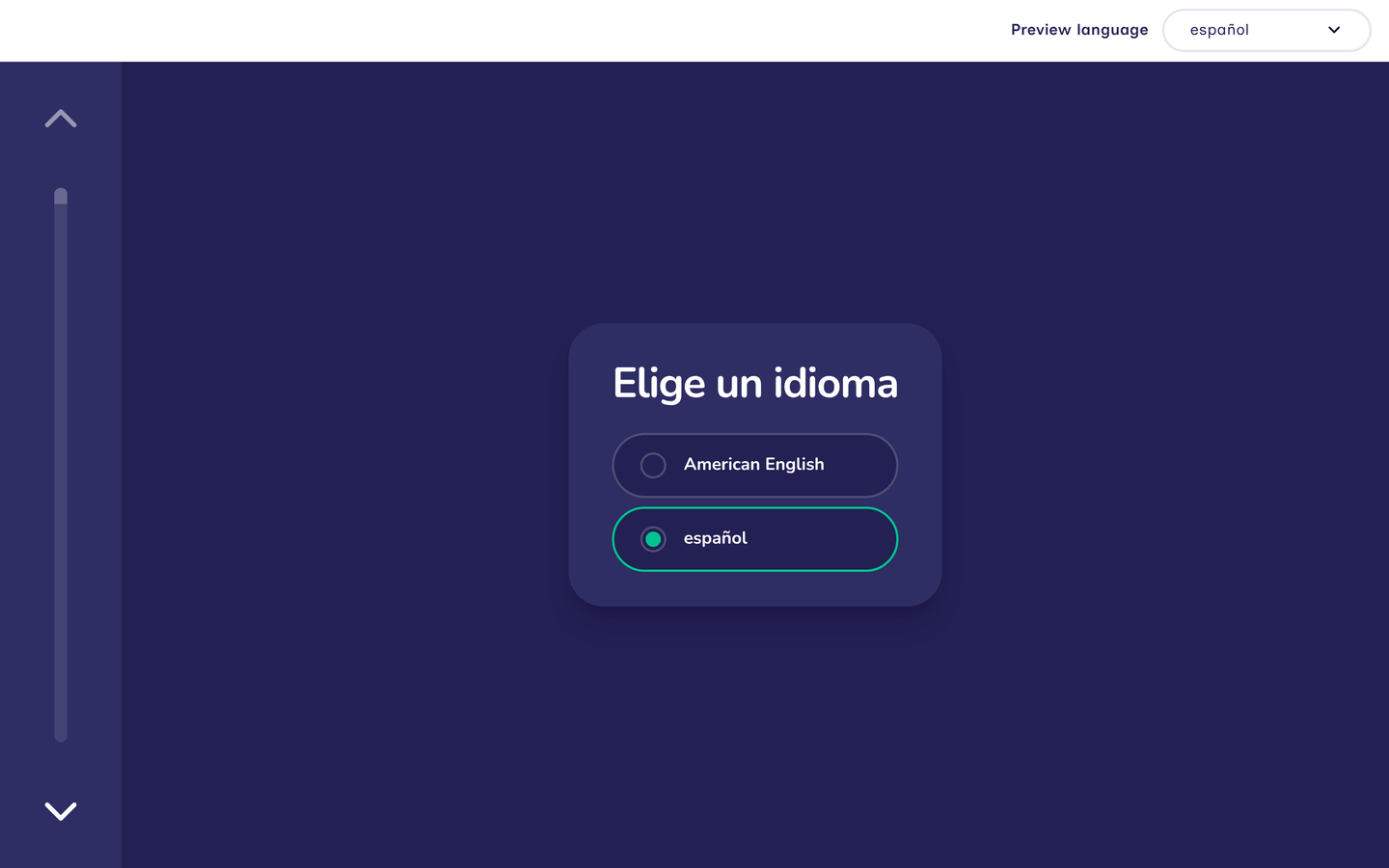
The participant can always move on to the next screen, even if they don't pick a language. If they leave the selected language as it is, the interview keeps choosing its language from the language settings of their device or browser, as it did before this screen. Once they pick a language, the interview keeps it until the browser tab is closed, including if the page is reloaded. The choice isn't saved with the interview, so an interview resumed in a new tab or on another device starts again from that device's or browser's language settings.
Configuring the Language Chooser
The stage editor has these sections:
-
Languages lists the languages participants can choose from: every language your protocol is written in, in alphabetical order. You can manage them right here. It is the same list as on Architect's Languages page, with the same rules (see Managing your protocol's languages), so a change made in one place appears in the other. A change also applies to this stage's changes that you haven't saved yet. You can:
- add languages with Add languages. A new language starts with no translations of your own text, though wording Network Canvas supplies, such as this stage's heading, already reads in it where Network Canvas has that wording.
- choose the default language from the Default language list, once your protocol has more than one language.
- stop offering a language with the delete button at the end of its row, which deletes its translations. You can't remove the default language until another language is the default. You can't remove a language that holds the only translation of some text until that text is translated into another language. This includes text on this stage that you haven't saved yet. When you can't remove a language, its delete button is unavailable. Point to it, or move to it with the keyboard, to see why.
- record a language's translations as a different language with the change button at the end of its row, for example when wording recorded as one language is really written in another (see Changing the language your text is recorded as). Your own wording moves as it is. Wording Network Canvas supplies that you have not changed becomes its wording in the language you choose, or is removed, for you to write, where Network Canvas has none in that language.
A Missing translations badge marks each language that some texts aren't translated into yet. The stage editor doesn't open the translation table: translate those texts from Architect's Languages page.
-
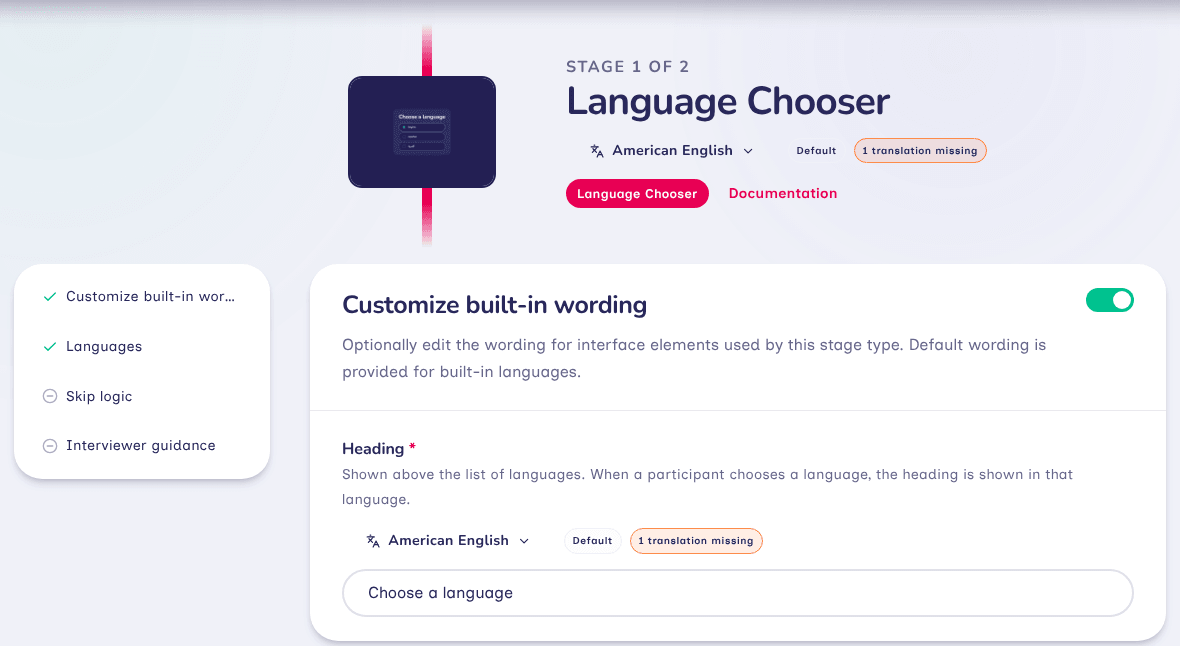
Customize built-in wording holds the Heading shown above the list of languages. It reads "Choose a language" in each of your protocol's languages that Network Canvas has wording for, until you change it. Change it as you would any other text, and translate it into any language it is missing from, as for the rest of your protocol (see Translating Your Protocol). When you add a language that Network Canvas has wording for, the heading reads as Network Canvas words it in that language too, until you translate it yourself.
-
Skip logic and interviewer guidance work as they do on other stages.
Data
The Language Chooser does not create nodes or edges, and it doesn't add anything to the participant's network. The participant's choice is not saved with the interview or included in your exported data. It lasts for the rest of their visit in that browser tab, including if they reload the page.
Best Practices
Put the Language Chooser at the very start of your protocol, before any screen with text that participants need to understand.
Translate every text of your protocol into each of its languages before you start collecting data. The translation table shows anything that is still missing (see Finding missing translations).
Try to Avoid
Avoid adding a Language Chooser to a protocol that has only one language. Participants will see a single language to choose, which adds a step without giving them a choice.
Avoid relying on the participant's device to pick the right language when it matters for your study. Devices shared between people, or set up by someone else, may be set to a language the participant doesn't read.