Design Protocolsinterface documentation
Shared Interface Options
Some configuration options are available to all or most interface screens (dependent on the sub-category of interface, e.g. name generators).
The stage editor
Beside the stage editor, Architect lists the stage's sections. Choose a section in the list to jump to it. Each entry is marked with a color and icon showing its state — finished, not finished, has a problem, switched off, or not available yet (a section that can't be filled in until something else on the stage has been chosen) — so you can see at a glance which parts of the stage still need attention. Screen readers announce the same state after the section's name. On a narrow screen, the list appears above the editor instead of beside it.
If you try to save a stage that isn't finished, Architect doesn't save it and lists each problem above the form, naming the section it is in, as well as marking the problem next to the control that holds it.
Shared Configuration
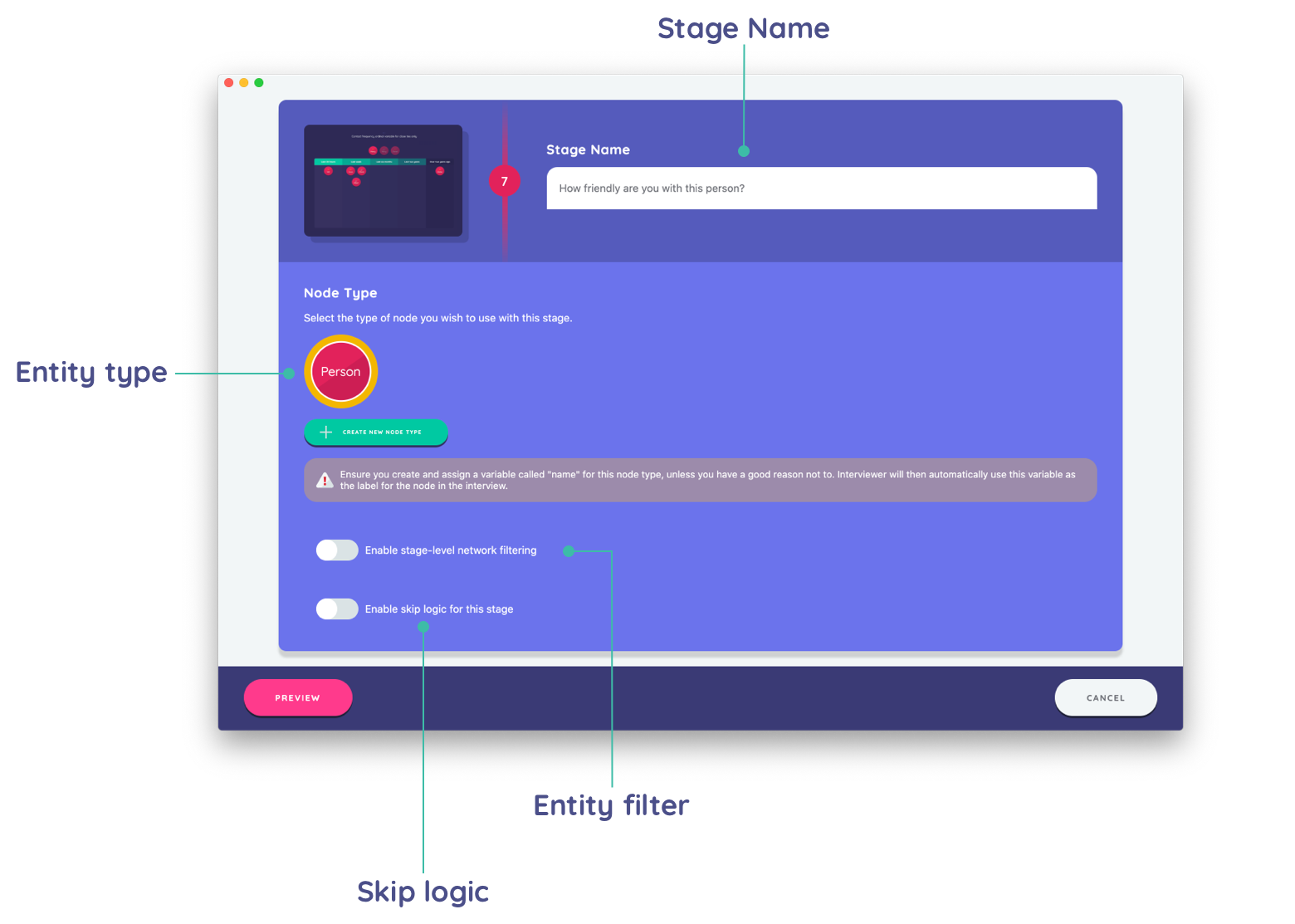
Name
All stages have a configurable name. This is shown in the navigation when conducting interviews, and in the timeline when constructing interviews. It can be used to set a memorable title or describe the purpose of a particular stage.
Entity Type
All stage types must select a single entity type, which defines the primary entity type for data collection. The one exception is the information screen, which does not collect any data.
Depending on the specific interface this will refer to either a node type, or an edge type.
In Architect, node and edge types are created and edited from the type picker itself. Create new node type or Create new edge type sits under the picker and opens the type editor without leaving the stage, and the new type is selected on the stage once it is saved. Edit this node type (or Edit this edge type) opens the type the stage already uses, so you can change its name and color (and, for a node type, its shape and icon) in place.
Filtering
This feature is available to Sociogram and Name Interpreter stage type categories. It allows further refinement of the selected entity type.
For example, a Sociogram may have a "Person" node type selected as the entity type. You may then use this option to narrow down to only those "Person" nodes which also have a specific attribute.
Skip Logic
This feature is available to all stage types. The state of the participant network may be assessed in order to determine whether a stage should be shown or instead skipped.