Design Protocols 🠖 key concepts
Preview Mode
As you build, you can preview any stage to see how it will appear to participants during an interview. This is useful at every step of designing a protocol, letting you check changes immediately rather than waiting until you deploy. How you open a preview, and what it offers, differs slightly between the two apps.
Previewing a stage
Open a stage in the editor and click Preview. The stage opens in a new browser tab, running just as it would during a real interview. You can cycle through the stage's prompts and complete any stage-specific activities, exactly as a participant would.
Nothing you enter in preview is saved. Close the tab when you are finished.
Preview settings
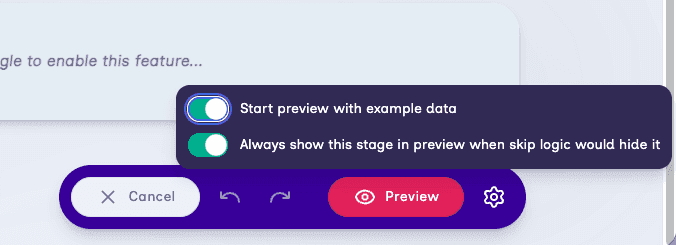
Next to the Preview button, a settings menu controls how previews behave:
- Start preview with example data — on by default. Architect fills the preview with automatically generated example nodes and edges, so interfaces that rely on a network (such as sociograms and bins) have something to display. The data is randomly generated, so it differs each time you launch a preview and is purely illustrative — it is not representative of real participant responses. The stage you are previewing is left partly incomplete on purpose, so you can still exercise its interaction (for example sorting nodes into bins, or positioning them on a sociogram). Turn it off to preview with an empty network.
- Always show this stage in preview when skip logic would hide it — on by default. The stage is shown in preview even when its skip logic would normally hide it, so you can check stages that would otherwise be skipped. A notice appears on the stage to remind you that skip logic was bypassed.
How preview works in the browser
Architect previews your stage in a browser tab at your current window size rather than emulating specific devices, so there are no device-size or orientation presets to choose. To see how a stage looks at a particular size, resize your browser window.
Caveats
- Nothing is saved. Preview is a throwaway session. Any data you enter is discarded as soon as you close the tab.
- Network-dependent stages need data to display. Interfaces such as the sociogram and the categorical and ordinal bins have nothing to show without a network. Keep Start preview with example data turned on so these stages have example nodes and edges to display.
Previewing a Stage
To use preview mode, click the card of the stage you wish to preview. Once on the stage configuration screen, click the large pink button in the bottom left corner. A window will open which displays the stage as it would appear in the Interviewer app. From there, you can cycle through the stage prompts and complete any stage specific activities. If you wish to preview more than one stage, continue advancing to subsequent stage(s) until you reach the end of your protocol.
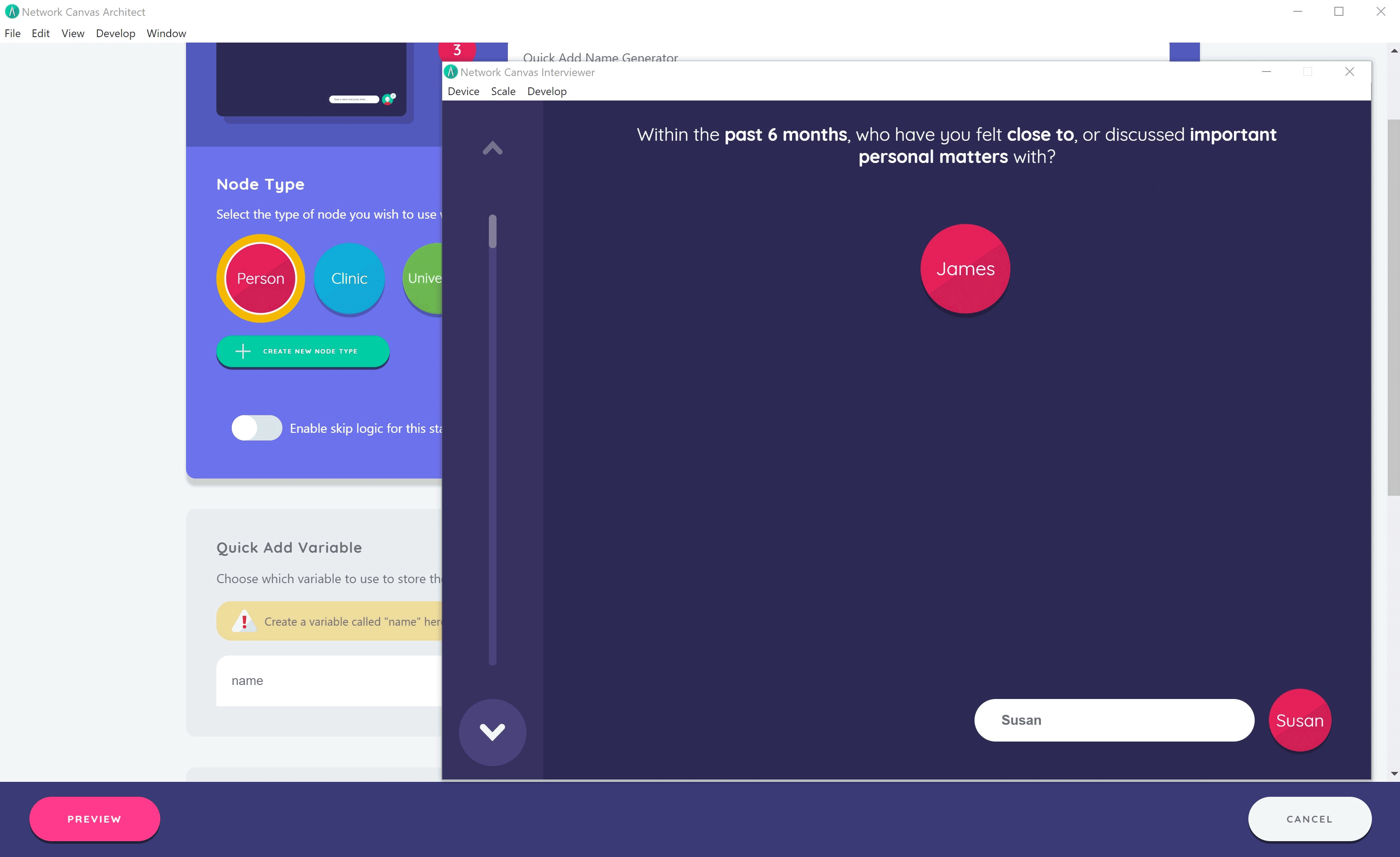
You can exit preview mode at any time by closing the window. Data you enter will carry forward to subsequent stages so long as you keep the preview mode window open. As soon as the window is closed, any data entered will be lost as preview mode does not permanently store data.
Caveats
Please note that in order to preview certain screens effectively, such as the sociogram, you will need to begin the preview in a name generator stage and enter some dummy data that can be used to preview subsequent screens. If you do not generate nodes first, the subsequent screens you preview will appear blank since there will be no data to display objects.