Collect Datafresco
Accounts & Security
Fresco protects the researcher dashboard with one or more accounts. This guide covers signing in, adding team members, and securing accounts with passkeys and two-factor authentication.
Good to know:
Multiple accounts, passkeys, and two-factor authentication require Fresco v4 or later. Earlier versions supported only a single password-protected account.
How an account is secured
Each account uses one of two mutually exclusive primary sign-in methods:
- Password mode — you sign in with a username and password. You can optionally add two-factor authentication (2FA) on top, using a time-based one-time password (TOTP) from an authenticator app. This is the only second factor Fresco supports.
- Passkey mode — you sign in with one or more registered passkeys (device biometrics such as Touch ID or Windows Hello, or a hardware security key) and have no password. Passkey mode does not use two-factor authentication: the passkey replaces the password rather than adding to it, and Fresco requires the authenticator to verify you with a biometric or PIN every time, so a passkey sign-in always proves both possession of the device and your identity.
An account is always in exactly one of these modes. A passkey is therefore never a second factor alongside a password — it is a complete, password-free sign-in method in its own right. You manage all of this from a single User Management card in Settings.
Signing in
Sign in from the dashboard login screen. If your account is in password mode, enter your username and password; if 2FA is enabled, you are then prompted for the 6-digit code from your authenticator app (with the option to use a recovery code instead). If your account is in passkey mode, choose Sign in with a passkey and authenticate with your device. Repeated failed attempts are rate-limited.
Changing your password
If your account is in password mode, open Settings → User Management, click Change Password, enter your current password, then set and confirm a new one. New passwords must be at least 8 characters and include a lowercase letter, an uppercase letter, a number, and a symbol.
If your account is in passkey mode there is no password to change. To set a password you must switch to password mode.
Adding team members
Take Care!
All Fresco accounts are equal. There are no roles or permission tiers: every account is a full administrator with complete access to all data, and can create or delete other accounts. Only create accounts for people you trust with the entire study.
Give each person their own account rather than sharing credentials. Open Settings → User Management, click Add User, and set a username and initial password (the new user can switch to a passkey afterwards). Select accounts and delete them to remove users.
You cannot delete your own account while signed in to it, and at least one account must always remain.
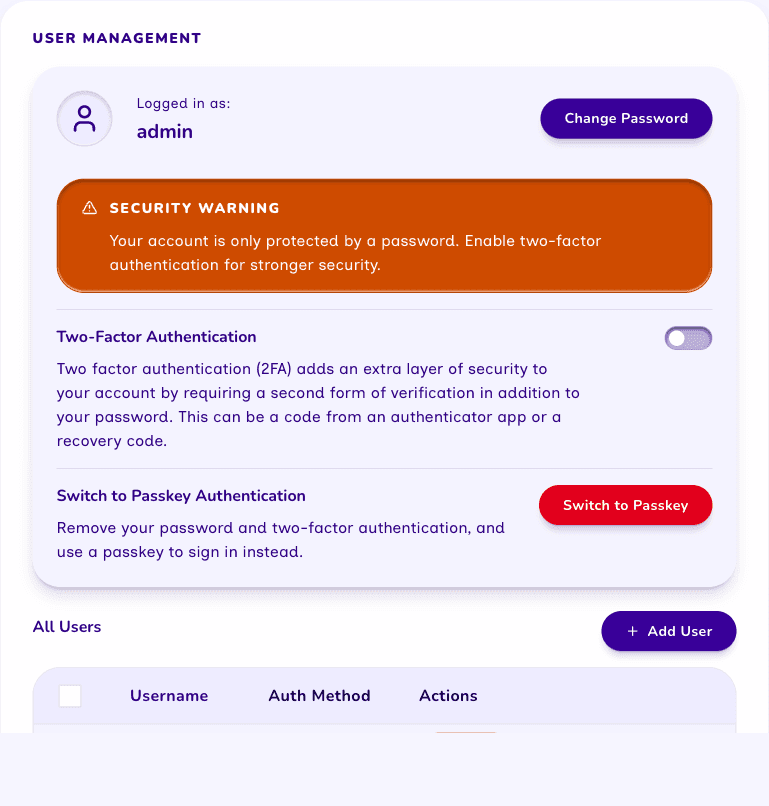
Two-factor authentication
When your account is in password mode, you can add two-factor authentication for stronger security. Fresco uses standard TOTP, compatible with apps such as Google Authenticator, 1Password, and Authy. (The 2FA controls only appear for accounts in password mode; passkey mode does not use them.)
From the User Management card in Settings, turn on Two-Factor Authentication, scan the QR code into your authenticator app, and enter the current code to confirm. You will then be asked for a code each time you sign in. On enrollment Fresco issues 10 single-use recovery codes to sign in if you lose your authenticator device.
Take Care!
Store your recovery codes somewhere safe and separate from your authenticator device, such as an institutional password manager. You can regenerate a fresh set at any time, which invalidates the previous ones.
Requiring two-factor authentication for everyone
If your institution requires multi-factor authentication for every administrator, set the
REQUIRE_TWO_FACTOR environment variable to true in your deployment's .env file (see the
environment variables reference).
This is an environment variable rather than a dashboard setting on purpose: every Fresco
account is an equal administrator, so a requirement that could be switched off from the
dashboard could be switched off by any of them. The Require Two-Factor Authentication
row of the User Management card shows whether it is in force. While it is:
- An account that signs in with a password but has no two-factor authentication is asked to set it up immediately after signing in, before it can reach the dashboard. Setup works exactly as described above, including the recovery codes. On a new deployment, the first administrator is asked as soon as they finish the setup wizard.
- Two-factor authentication cannot be turned off on a password-mode account. Another administrator can still Reset Auth for a locked-out colleague (see Recovering access); that account sets up two-factor authentication again the next time it signs in.
Passkey-mode accounts are not affected: a passkey replaces the password entirely, and Fresco treats it as satisfying the requirement. Fresco requires every passkey to verify you with a PIN or biometric (see Passkeys below), so it already combines two distinct factors — possession of the authenticator and that check — without a separate TOTP step.
Passkeys
A passkey lets you sign in using your device's biometrics (Touch ID, Windows Hello) or a hardware security key, with no password at all. Passkeys are an account's primary sign-in method — not a second factor on top of a password.
Fresco requires every passkey to verify you with a biometric or PIN (WebAuthn user verification), both when it is registered and each time you sign in, and rejects a response where the authenticator skipped that check. A hardware security key therefore needs a PIN — your browser will ask you to set one if the key supports it — and a key that cannot verify you cannot be registered. A passkey that an earlier version of Fresco registered on such a key no longer signs in; Fresco tells you what to check rather than reporting a generic failure. If that happens, sign in with another of your passkeys, or ask another administrator to Reset Auth for your account (see Recovering access). If you are still signed in, use Add passkey to register one that verifies you before you sign out.
From the User Management card in Settings, an account in passkey mode can use Add passkey to register additional passkeys (you can register more than one, and each is given a name) or Remove to delete one. You cannot remove your only passkey unless you first set a password (otherwise you would lock yourself out), so to leave passkey mode entirely use Switch to Password Authentication instead.
Choosing between passwords and passkeys
An account can move between the two modes at any time from the User Management card, but switching is destructive — Fresco never keeps both kinds of credential side by side:
- Switch to Passkey Authentication asks for your current password, registers a passkey, then deletes your password along with any two-factor authentication and recovery codes.
- Switch to Password Authentication verifies you with an existing passkey, then removes all of your registered passkeys and replaces them with a password.
Take Care!
Because switching deletes your previous credentials, make sure you can complete the new method (a working authenticator or passkey device) before you start, and keep a second administrator enrolled so you are never the only person who can sign in.
Recovering access
Fresco has no email-based "forgot password" flow. You can only change your password while signed in. If you are locked out, your options, in order of preference, are:
- Use a recovery code to sign in (if two-factor authentication was enabled).
- Ask another administrator to Reset Auth for your account from User Management. This wipes the target account's credentials — any passkeys, two-factor authentication, and recovery codes — and issues a temporary password. The administrator shares that temporary password with you, and you use it to sign back in and set up new credentials.
- As a last resort, if every account is inaccessible and no recovery codes remain, reset your database. This destroys all data and unexported interviews.
Because of this, keep your credentials and recovery codes somewhere safe and enroll more than one administrator, so a second person can always restore access.
For how authentication works at the infrastructure level (session cookies, encryption, rate limiting), see the FAQ for IT Departments.