Design Protocolsinterface documentation
Finish Screen
- Type
- Utility
- Creates
- Does not create entities
- Uses Prompts
- No
The Finish Screen is the last screen of an interview. It ends the interview and locks in the participant's answers, either when participants confirm that they are finished or as soon as they reach it. Every protocol ends with one, and it also records how the interview ended, so that you can tell interviews apart in your data. A protocol can end with more than one Finish Screen, for example to give participants who are not eligible a separate ending (see More than one Finish Screen).
A new protocol starts with a Finish Screen already in place. Protocols made before the Finish Screen existed get one added when they are upgraded to schema 9 (see Schema version 9).
What participants see
What participants see depends on how you choose that they finish (see How participants finish).
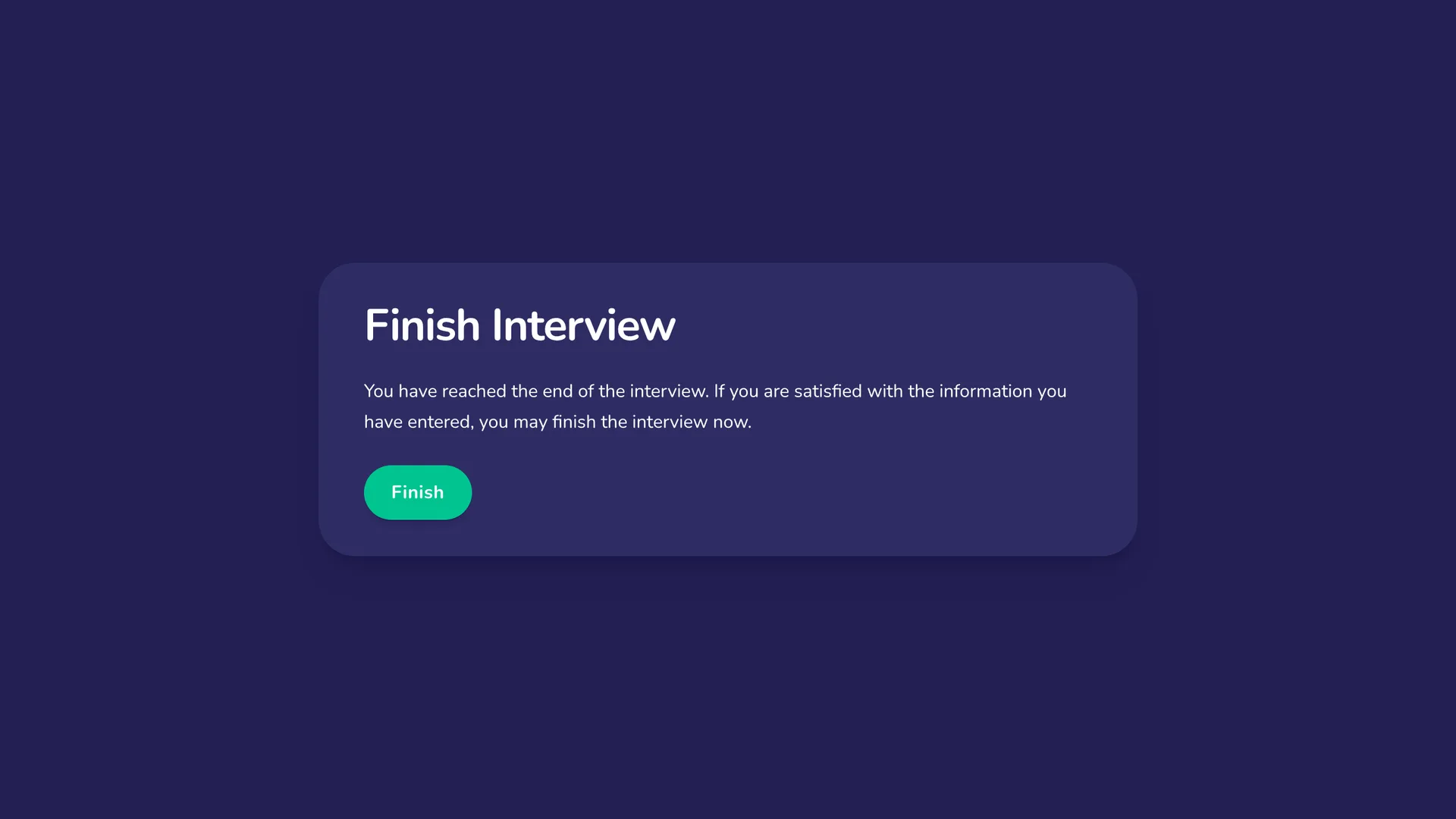
When participants confirm, they see the closing screen: the closing text you wrote and a Finish button. They press Finish and are asked to confirm, because their answers can't be changed once the interview is finished. Until they confirm, they can go back and change their answers. If the interview can't be finished, they stay on the closing screen, see a message saying so, and can try again.
When the interview finishes automatically, it finishes as soon as participants reach the Finish Screen. There is no closing screen, no button and no question, and participants can't go back from it. If the interview can't be finished, they see a message saying so and a Finish button to try again.
Once the interview is finished, it shows its finished screen:
- the finished text you wrote.
- no way to move through the interview. There are no navigation buttons and no way back to an earlier screen.
Opening a finished interview again shows the finished screen again, rather than the interview from the start.
The app that runs the interview can add one action to the finished screen:
| App | Action added to the finished screen |
|---|---|
| Interviewer | Exit, which returns to the dashboard |
| Architect (Preview) | Start the preview again |
| Fresco | None. Participants close the window |
In Interviewer, when you review an interview that has been finished, its stages are shown read-only. The Finish Screen is not part of the review, and it isn't listed in the stages menu.
Configuring the Finish Screen
The stage editor has these sections:
- Stage name is the name you see in the timeline and the stages menu. It is not shown to participants as the screen's heading.
- How participants finish decides whether participants see a closing screen (see How participants finish).
- Closing screen holds what participants read before they finish. It is only shown when participants confirm. Closing text is a single text field whose first line is the screen's heading. You can format it with Markdown, such as headings, paragraphs, lists and links.
- Finished screen holds what participants read once the interview has finished. Finished text works like the closing text: its first line is the heading, and you can format the rest with Markdown.
- Customize built-in wording holds the words participants read while they finish (see Finishing the interview).
- Outcome has the choice How the interview ended. Participants never see it. It is saved with the interview and included in your exported data (see Data). The choices are:
- Completed: the participant reached the normal end of the interview.
- Ineligible: the participant did not qualify for the study.
- Ended early: the interview ended early for another reason, such as a distress or safety stop.
- Interviewer guidance works as it does on other stages.
A Finish Screen can't have skip logic, because every route through the interview ends at one.
How participants finish
How participants finish has two choices:
- Participants confirm shows the closing screen. Participants press Finish and confirm when asked. Until then they can go back and change their answers. This is the choice for a new Finish Screen, and for the one added when a protocol is upgraded to schema 9.
- Finish automatically finishes the interview as soon as participants reach the Finish Screen, and they can't go back. There is no closing screen, so the stage editor hides the Closing screen section and the confirmation question.
Whichever you choose, participants see the finished screen once the interview has finished.
Finishing the interview
The Customize built-in wording section holds the words participants read while they finish, apart from the closing and finished text:
- Finish button is the words on the button that ends the interview. When the interview finishes automatically, participants only see the button if finishing fails, to try again.
- Confirmation question is the question participants are asked after they press the button, before the interview ends. Participants are only asked it when they confirm, so the stage editor only shows it then.
- If finishing fails is the message participants see when the interview could not be finished.
Network Canvas supplies each of them in each language it has wording for, so a new Finish Screen is ready to use. Like the rest of your protocol, they are text you can change. When your protocol has more than one language, translate them with the closing and finished text (see Words Network Canvas supplies).
Starting text
A new protocol starts with a Finish Screen whose stage name is "Finish Interview". Its closing text has the heading "Finish Interview" and reads "You have reached the end of the interview. If you are satisfied with the information you have entered, you may finish the interview now." Its finished text has the heading "Interview Finished" and reads "Thank you for participating!" A Finish Screen you add yourself starts with the same closing and finished text. Network Canvas supplies this text in each language of your protocol that it has the text for. You can change all of it. The same goes for the words in Customize built-in wording.
When you add a language to your protocol, Architect also adds the supplied text in that language: the closing and finished text, the stage name and each of the finishing texts get Network Canvas's wording in the new language wherever they have no translation in it, even if you have changed them in your other languages, so check that the new language says what your own text says. See Adding languages. When you change the language your text is recorded as, supplied text you have not changed becomes the supplied text in the language you chose, or is removed where Network Canvas has none in that language, and text you have changed keeps your wording. Translate your own text like the rest of your protocol (see Translating Your Protocol).
Text needed before downloading
Network Canvas doesn't supply closing and finished text in every language. If your protocol's default language is one it has no text for, or you clear the text, a Finish Screen can be left without text it needs. Architect then won't download the protocol until you add the text in your default language:
- a Finish Screen where participants confirm needs closing text and finished text.
- a Finish Screen that finishes automatically needs finished text.
While text is missing, the stage list shows a warning with a link to the Finish Screen that needs it. You can still edit, save and preview the protocol.
More than one Finish Screen
A protocol can end with several Finish Screens, each ending the interview in its own way. For example, you might add a second Finish Screen for participants who are not eligible, with its own closing and finished text and the outcome Ineligible. Choose a different outcome for each Finish Screen, so that you can tell in your data where each interview ended.
To add a Finish Screen, choose Finish Screen under Utilities on the New Stage screen.
Finish Screens stay together at the end of the protocol:
- The protocol must end with a Finish Screen. You can't delete the last one that remains. If you try, the timeline explains why and leaves it in place.
- You can reorder Finish Screens among themselves, but the timeline won't let you move another stage after them, or move a Finish Screen above another kind of stage.
- Add new stage puts other stages before the Finish Screens.
The interview reaches the first Finish Screen by default. Participants reach any later one through skip logic (see Skip logic that ends the interview). No Finish Screen leads forward to another.
Previewing
In Architect, Preview ends at the Finish Screen's finished screen, with a Start the preview again action, so you can see what participants see after they finish. Preview doesn't save anything, and the outcome isn't recorded.
Skip logic that ends the interview
On any other stage, you can choose End the interview as the place to continue when that stage is skipped. This goes to the first Finish Screen after the stage that owns the rule. To end the interview at a later Finish Screen, such as one for participants who are not eligible, choose that Finish Screen by its name instead. See Choosing where to continue.
Data
The Finish Screen does not create nodes or edges, and it doesn't add anything to the participant's network. The outcome you chose is recorded with each interview that is finished there and is included in your exported data: the CSV ego file has a networkCanvasFinishOutcome column, and GraphML files have an nc:finishOutcome attribute. The value is completed, ineligible or terminated. See How the interview ended.
The outcome is empty for interviews that were finished before your app recorded it, and for interviews that haven't been finished.
Best Practices
Write finished text that tells participants what happens next: that their answers have been saved, whether they can close the window, and, if it applies, how they will receive any compensation or follow-up.
Check the closing text, the finished text and the words in Customize built-in wording in every language of your protocol. If you have added languages after changing the text, translate it in each one (see Finding missing translations).
Leave the outcome of the Finish Screen that ends a normal interview as Completed. Every interview that is finished at a Finish Screen is recorded with the outcome you choose there, so choose Ineligible or Ended early for a separate Finish Screen that only interviews ending that way reach, such as one that skip logic sends participants who didn't qualify to.
Try to Avoid
Avoid asking participants for any further information on the Finish Screen. Finishing locks in their answers, and the finished screen allows no more input, so any question has to come on an earlier stage.
Avoid writing finished text that tells participants to go back and check their answers. Once the interview is finished they can't go back, so tell them to do it in the closing text, before they finish, or leave it out. When the interview finishes automatically, there is no closing text, so tell them on an earlier stage.
Avoid telling participants to press an Exit or Close button in the text. Which action, if any, the finished screen offers depends on the app running the interview (see What participants see), and Fresco offers none.