Design Protocolskey concepts
Forms
Details
Forms are one of the primary ways you will assign values to your variables in Interviewer. They work by associating each variable with an input control, a question prompt and validation options, to form a field. Each form can have as many fields as you wish, in any order.
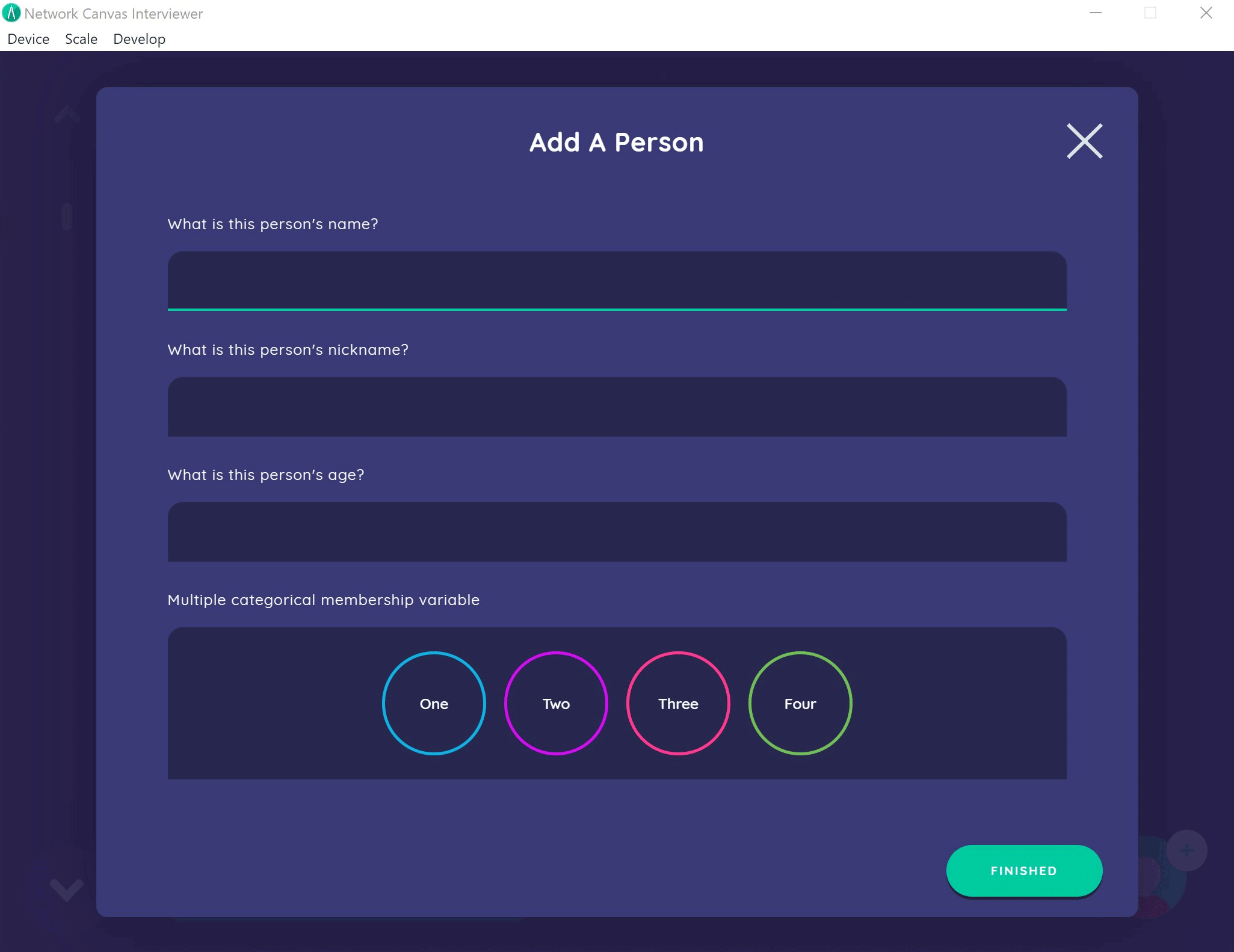
When using Architect to design your protocol you will encounter several places where you can build a form - particularly when creating stages that use Interfaces such as the Name Generator, the Per Alter Form, and the Ego Form.
Constructing a form
Forms are comprised of one or more fields, which can be reordered to appear in any sequence. The sequence they appear in Architect is the same sequence they will be shown in Interviewer. To begin creating a form, locate the form section within the Interface you are configuring.
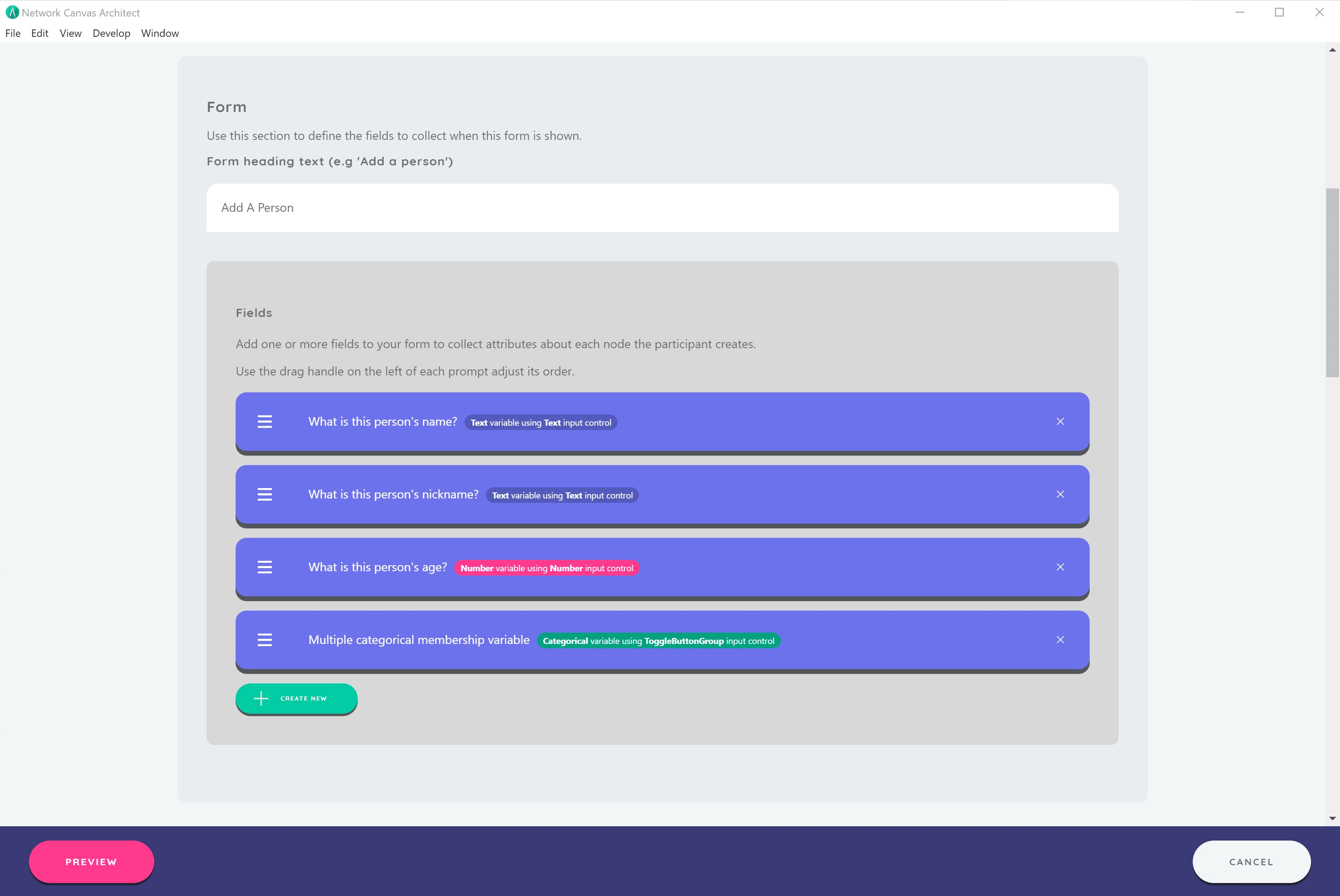
Set the Form title, and then create fields for each of the attributes you wish to capture on this form by clicking Create new form field.
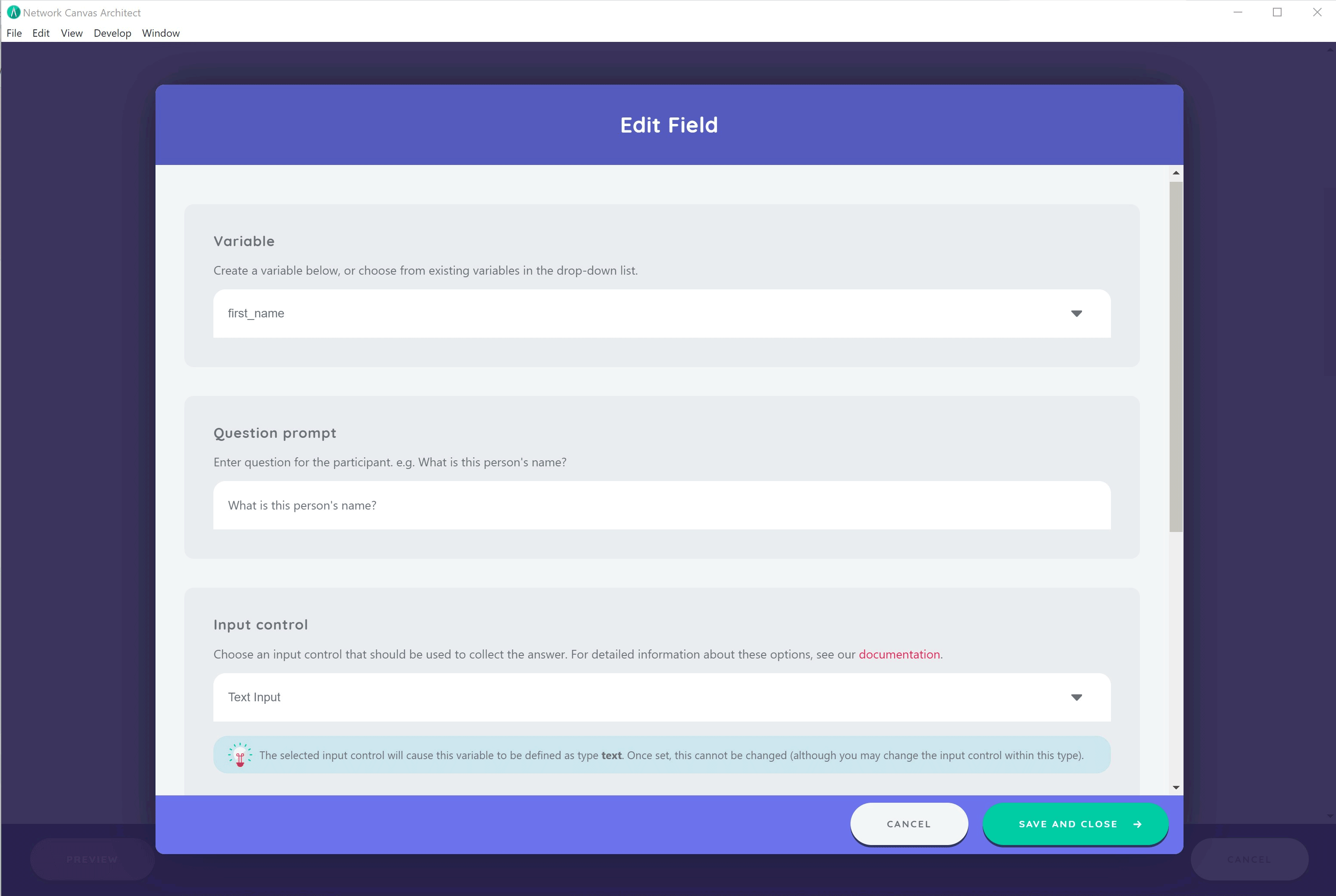
The field dialog has two panes. On the left are the field's settings. On the right is an Interactive preview showing the question as the participant will see it, in the interview's own theme. The preview follows what you type and choose, and you can answer it: Check response runs the attribute's validation rules against your answer, so you can see what a participant would be told. Those are the rules the attribute already carries in the codebook: while a field is creating a new attribute, the rules you set beside it only start applying once you save the field, so until then Check response accepts anything. Answering the preview changes nothing in your protocol. On a narrow screen the two panes stack into a single column.
The settings are arranged in this order:
- Attribute selection — choose an existing attribute, or create a new one, in the attribute window.
- Field configuration — the Question text (the prompt shown to the participant, which supports markdown formatting), an optional Hint text, the Show validation hints switch, and finally the Input control. For a new attribute, the input control you choose determines the attribute's type.
- Below these come the attribute's own answer options, for attribute types that have them, and its Validation section. For an attribute you are creating in this field, you can set its validation rules here before saving the field, and they are created along with it.
The hint is markdown-formatted guidance displayed below the question to help participants understand how to answer (for example, "Select all that apply..."). Leave it blank if no extra guidance is needed.
Take Care!
Once you set a variable type (by choosing its input type when first used), you cannot change it later. You can still adjust the specific input control on your form after the type is set, as long as the input control is compatible with the variable type.
After setting the input control, set any variable-specific options and configure the validation options you require. Validation helps ensure data quality by enforcing rules like required fields, format constraints, and value ranges. You can also enable Show validation hints for the field, which automatically displays hints derived from the field's validation rules, helping participants understand the input requirements without you having to write them out by hand.
Considerations
When designing forms, keep these points in mind:
- Although it may be tempting to create long and elaborate forms, as is typical within other more traditional survey software, consider the burden of overloaded forms on participants and data quality. For example, while you can capture categorical data within a form, you might elect to use the Categorical Bin Interface instead. Network Canvas Interviewer is not intended to replace existing survey methods.
- Making strategic use of forms allows you to capture attribute data systematically. However, you lose the interactive qualities (e.g. dragging and dropping) of other Interfaces that may improve the interview experience for participants and potentially render higher quality data.
- If you use the same variable in multiple places in your interview (for example in different forms), any changes you make to the input control or validation options will apply to all uses of the variable.
Related concepts
- Input Controls - Choose appropriate input controls for your variables
- Field Validation - Ensure data quality with validation rules
- Variables - Understanding variable types and configuration
- Interfaces - Learn about all available Interfaces including form-based ones
- Prompts - Configure participant-facing questions