desktop 🠖 interface documentation
Geospatial
Type:
Name Interpreter
Creates:
Geospatial attribute data by allowing the user to select areas on a map
Uses Prompts:
true
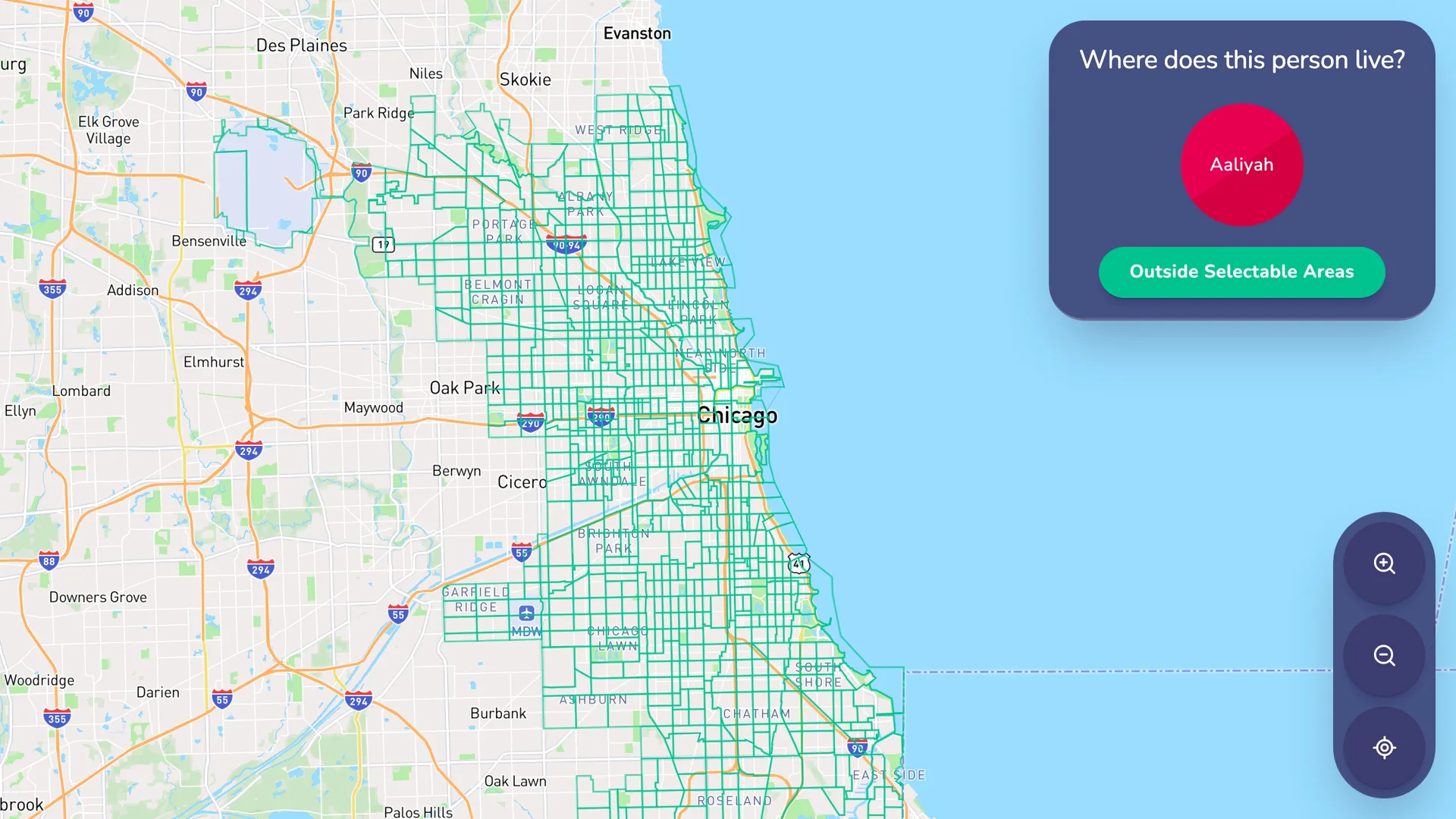
The Geospatial Interface is a name interpreter Interface that captures geospatial data on the alters in a participant's network. When using the Geospatial Interface, participants can select an outlined area on a map, which are defined by a GeoJSON file.
Mapbox Configuration
This interface uses a third-party service called Mapbox to provide map functionality. To use this service, you need to create an account with Mapbox and retrieve an API key for communication with Architect, Interviewer, and Fresco.
To create a Mapbox account and retrieve an API Key:
-
Create an account on Mapbox.
-
Go to the account overview.
-
In the tokens section, click the copy button to copy the token.
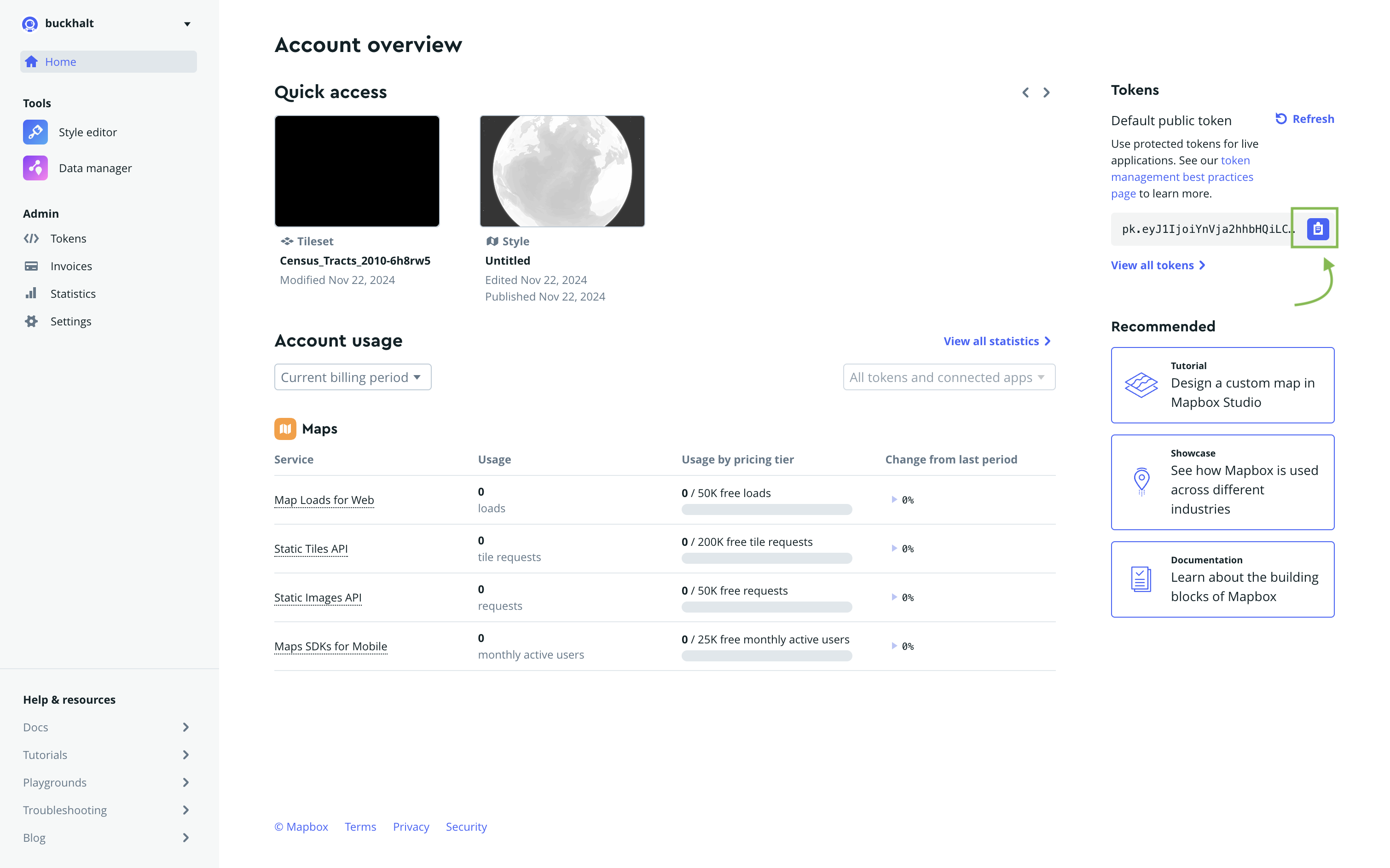
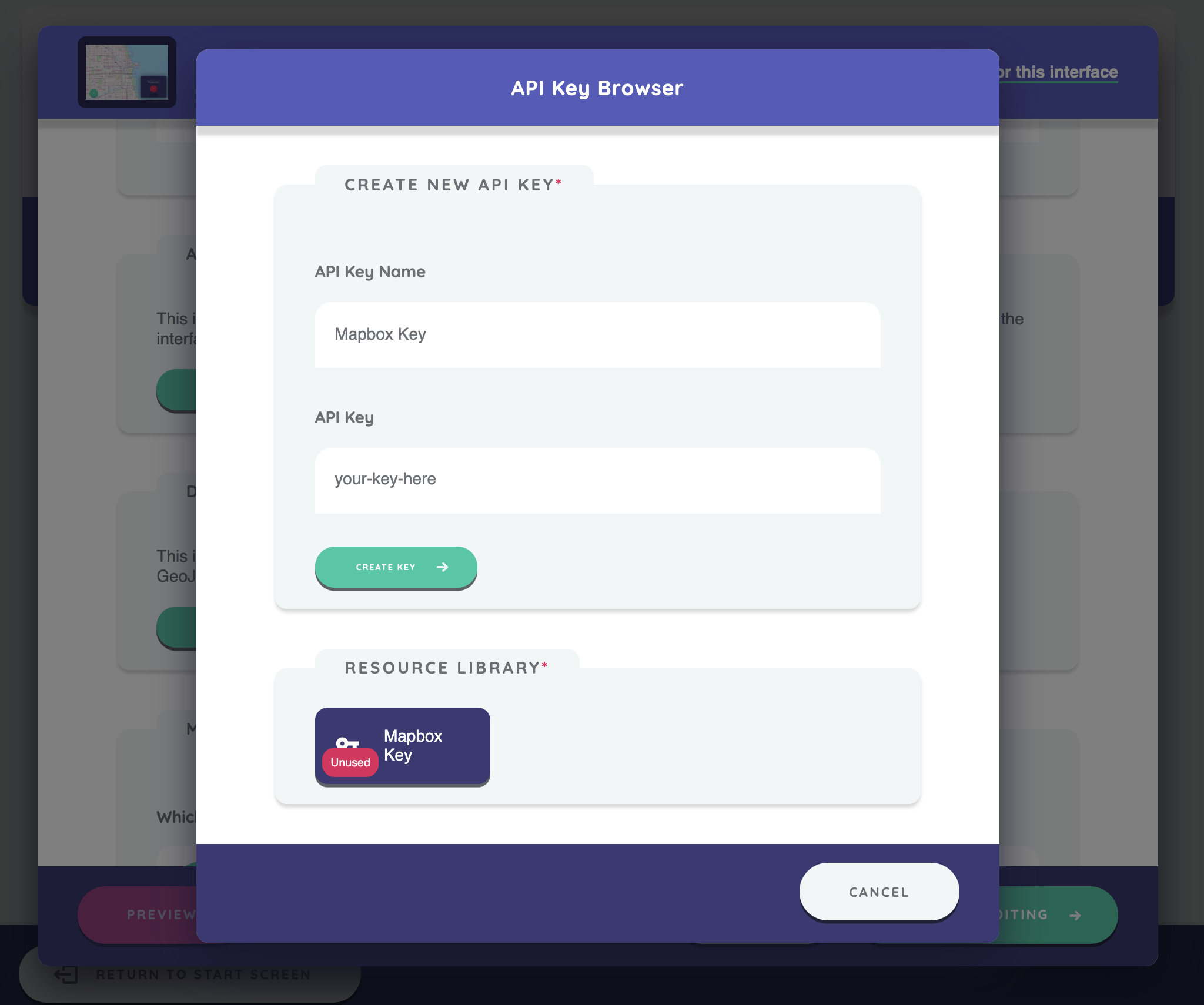
Once you have copied your API token from Mapbox, you can add it to your protocol in the API Key section of the interface configuration. Tokens can be reused across interfaces. They are accessible via the Resource Library and can be copied, deleted, or replaced if needed.
Defining a Data Source
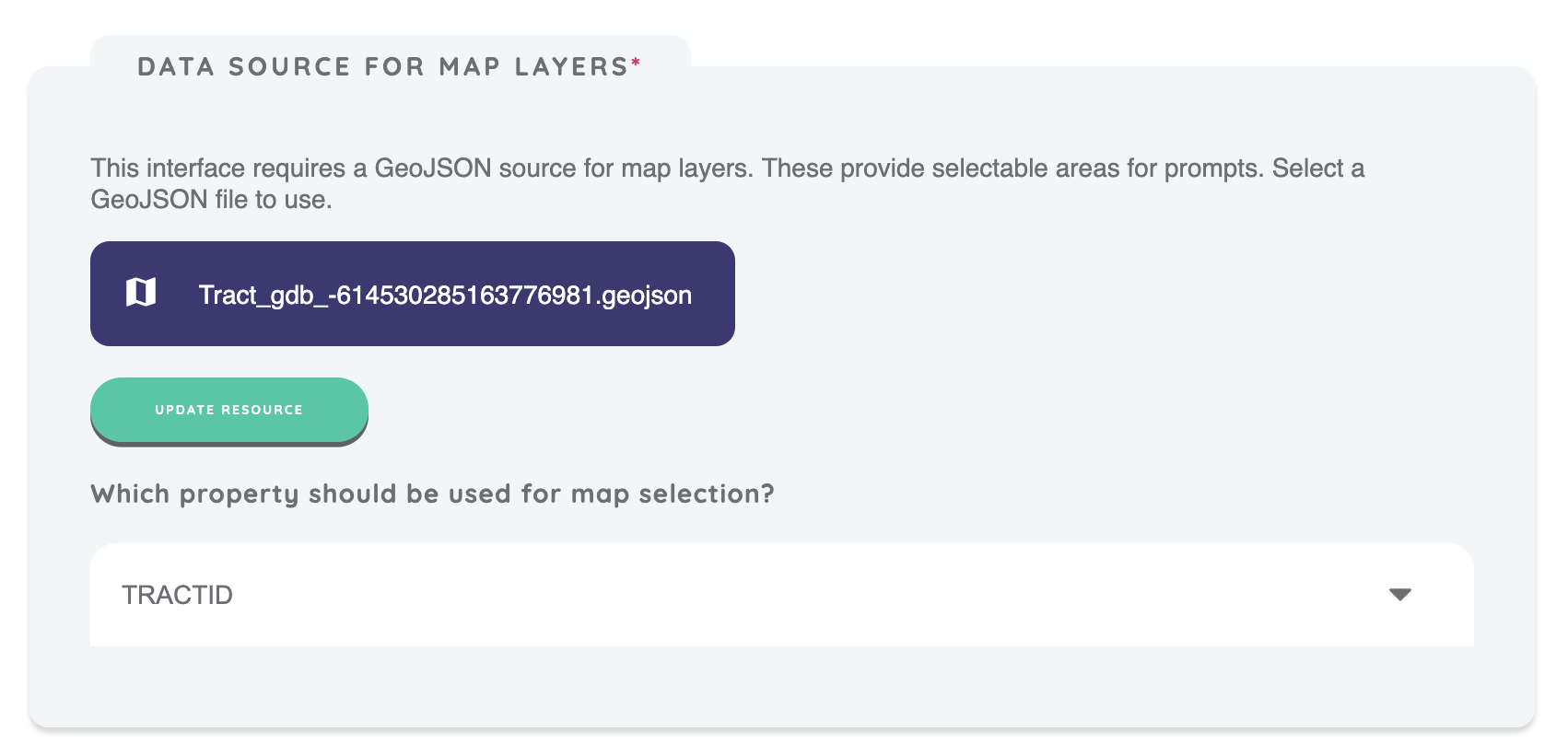
This interface requires a GeoJSON source for configuring map layers, which provide selectable areas for prompts. GeoJSON is a standard file format for representing geographic features, including areas or boundaries, along with their associated properties (such as names or categories).
For example, a GeoJSON file might contain areas representing census tracts, with each area containing additional properties like the zipcode or neighborhood.
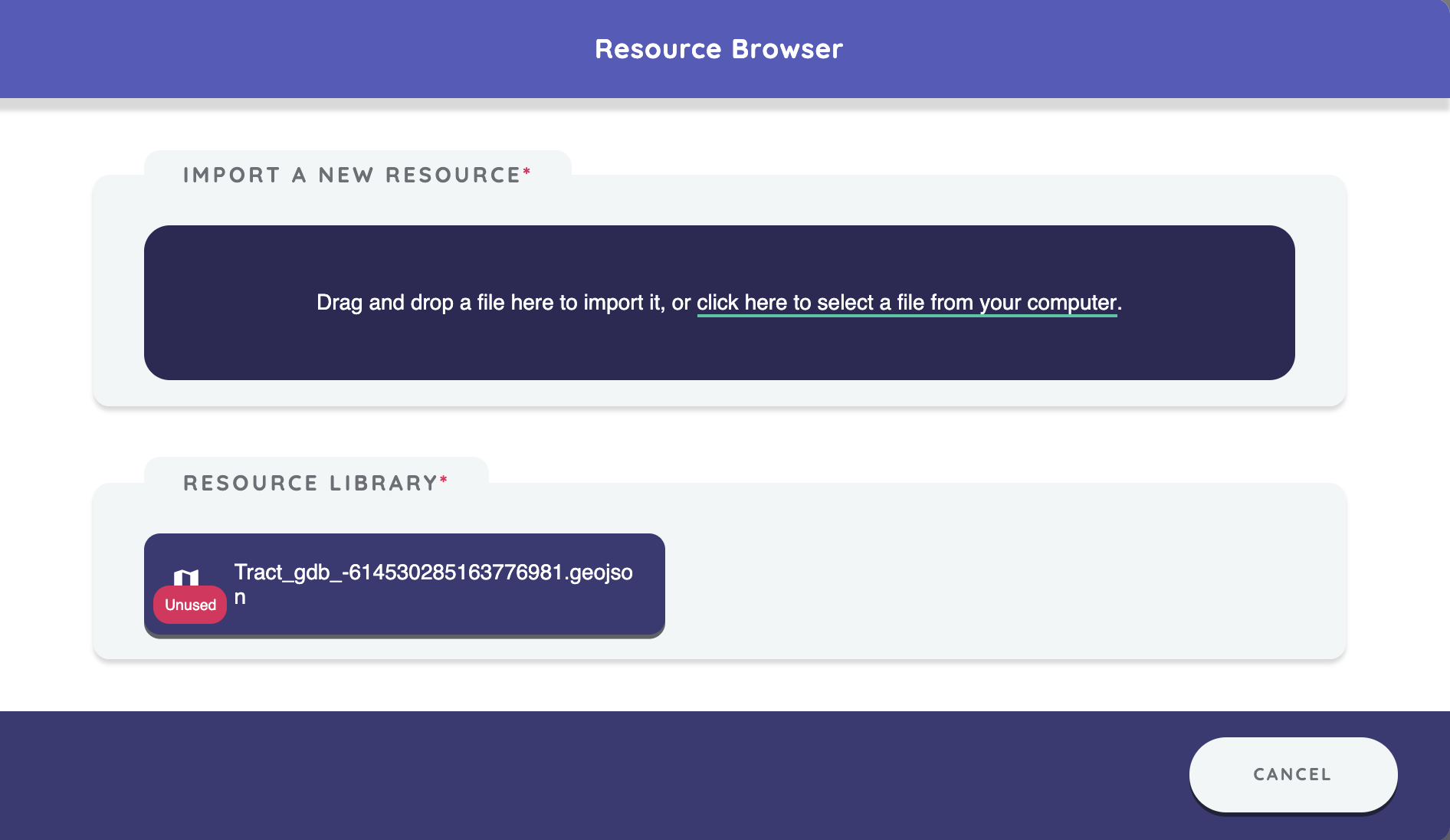
After uploading a GeoJSON file in the Data Source for Map Layers section, select a property (e.g., census tract or zip code) to define the selectable areas on the map. The values of this property will be used to assign variables for the prompts.
For example, if your GeoJSON file contains a TRACTID property, selecting an area on the map will assign the TRACTID value to the prompt variable.
Map Style
You can customize the map's appearance by choosing from a variety of standard or classic Mapbox styles and selecting the color for the map's outlines and selections.
Additionally, you can enable the following options:
- Show public transit: Displays transit routes and stations on the map, which can help participants orient themselves when selecting areas.
- Allow search: Enables a search box that allows participants to search for addresses, neighborhoods, and points of interest. This can help participants quickly navigate to familiar locations on the map. Note that enabling this feature uses the Mapbox Search API, which may incur additional costs depending on your usage. See the Mapbox pricing page for details.
Configuring Initial Map View
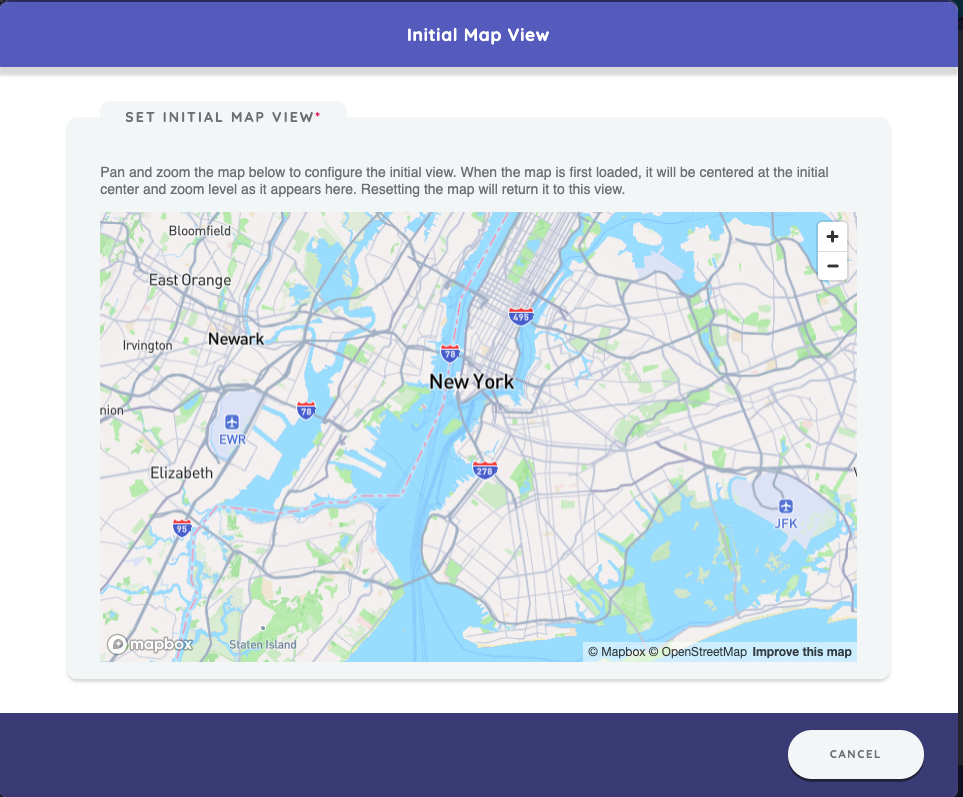
Configure the initial map view by panning and zooming the map in Architect. The map will be centered based on the initial coordinates and zoom level as set here. Resetting the map will return it to this view.
Prompts
The Geospatial Interface can include multiple prompts, each corresponding to a single text variable. The value of each variable is determined by the property of the selected map area from the GeoJSON file.
If a response is made outside the selectable areas on the map, the variable will be assigned outside-map-area.
Best Practices
Consider using network filtering to narrow down nodes to only those that fall within the
selectable map areas. Prior name interpreters, such as Categorical Bins or Per Alter Forms, can be used to
capture additional variables that can be used to filter out nodes who are outside the map area. This ensures participants are only prompted to select an area on the map for relevant nodes,
reducing the chances of assigning outside-map-area and minimizing response burden.
Choose a unique property (e.g., zipcode or census_tract) for map selection to ensure each area is clearly distinguishable.
You can optionally merge all GeoJSON properties with your alter data during data cleaning and analysis. For example, you can match the zipcode to other attributes like population or other data contained in the GeoJSON file.
Try to Avoid
Avoid using excessively large GeoJSON files that contain layers or areas far outside the intended selection areas. This can lead to slower performance when loading the map.