Collect Datafresco
Upgrading Fresco
Fresco is continuously improved. As we release new versions of Fresco, you can upgrade your deployed instance using this guide.
When to Upgrade
You are responsible for upgrading your own instance of Fresco. We recommend upgrading your instance of Fresco when a new version is released. This will ensure that you have the latest features and bug fixes. You can check for new releases in the following places:
- Network Canvas User Community: We will notify users of new releases on our community forum.
- Your GitHub repository: You can check for new releases on your GitHub repository. If a new release is available, you will see a message at the top of your repository with the number of commits your branch is behind by.
- Settings: You can check for new releases on the settings page of your Fresco dashboard.
Upgrade Process
This process applies if you deployed Fresco by forking the repository and connecting it to Netlify, as described in the Deployment Guide. To upgrade your Fresco version, you will need to sync your fork with the latest version of the Fresco repository. This will pull in the latest changes and updates from the main Fresco repository.
From your GitHub repository, click "Sync Fork" and select "Update Branch".
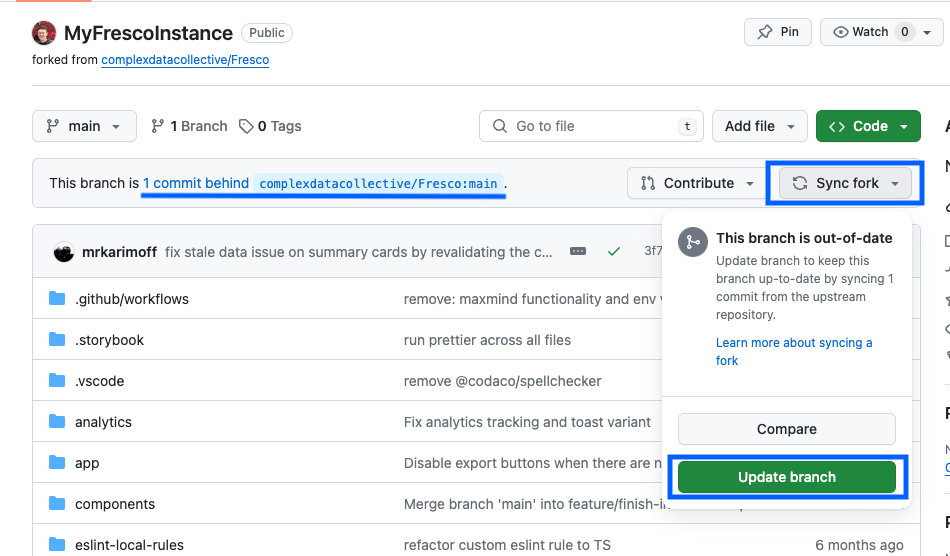
Netlify will automatically begin redeploying your Fresco instance. This process will take a few minutes to complete.
For more information on how to sync your fork, see the GitHub documentation.
Upgrading a Docker deployment
If you deployed Fresco with Docker rather than by forking the repository, there is no fork to sync. Instead, you pull the latest container image and recreate the stack — see Updating Fresco in the Advanced Deployment guide for the commands. If you pinned a specific image version, update the tag in your compose file first.
Versioning
Fresco uses semantic versioning to manage releases, meaning that versions are specified using three numbers separated by a period. The numbers are ordered according to significance, with the first number being a major version, the second being a minor version, and the third being a "patch". In general, major versions are not backwards compatible with the previous version (so 3.x.x is not compatible with 2.x.x). Minor versions are used to add new features in a backwards compatible way (for example, 2.2.x might introduce a new feature that is compatible with 2.x.x). Patch versions are used for fixing bugs or addressing other issues that don't change the behavior or functionality of the software.
This means that it should always be clear if a new version of Fresco is safe to install while you are collecting data, or if you should wait.
This version information is accessible from several places:
- Settings: You can find the version number of your Fresco instance in the App Details section of the Settings page of your dashboard, which also tells you whether a newer version is available.
- GitHub: You can find the version of your Fresco instance on your GitHub repository, inside the
package.jsonfile. - Exported Data: The version number of your Fresco instance is included in the exported data within the ego file. This information is useful for tracking the version of Fresco used to collect data.
The health check endpoint, /api/health, does not report the version. If you monitored your instance's version through it, use the Settings page instead.
Upgrading to 4.2.0
Most of Fresco 4.2.0 needs no action, but check the following before you upgrade.
- Passkeys must verify you. Fresco now requires every passkey to confirm who you are with a PIN, fingerprint, or face, both when it is registered and each time you sign in. A passkey registered on a hardware security key that has no PIN will stop signing in after the upgrade. Before upgrading, each administrator who signs in with a passkey should use Add passkey under Settings → User Management to register a passkey that verifies them, or make sure another administrator can use Reset Auth on their account. See Passkeys.
- The health check no longer reports the version or uptime.
/api/healthstill answers liveness probes with the service status, so container health checks and load balancers keep working, but its response no longer includes the running Fresco version or process uptime. Update any monitoring that read either value from it. See Health checks. - You can require two-factor authentication. A new, optional
REQUIRE_TWO_FACTORenvironment variable makes two-factor authentication mandatory for every account that signs in with a password. Nothing changes unless you set it. See Requiring two-factor authentication for everyone. - Protocol import explains what is wrong. A protocol file that is missing one of its resources is refused, as before, but the message now names the missing resource, and a protocol file whose contents are damaged is reported as damaged. Protocols you have already uploaded are not affected. See Uploading protocols for how to fix a protocol that is refused.
UploadThing variable update (pre-2.0.0 upgrades only)
This section applies only if you are upgrading from a version of Fresco older than 2.0.0, which used an earlier UploadThing environment variable format. After the upgrade process is complete, update the variable as follows:
-
Visit your UploadThing dashboard.
-
Navigate to the API Keys section from the sidebar and copy your environment variable using the copy button. It should look something like this:
UPLOADTHING_TOKEN='abCdefGHiJkLmNopQrsTuvWxYz.......' -
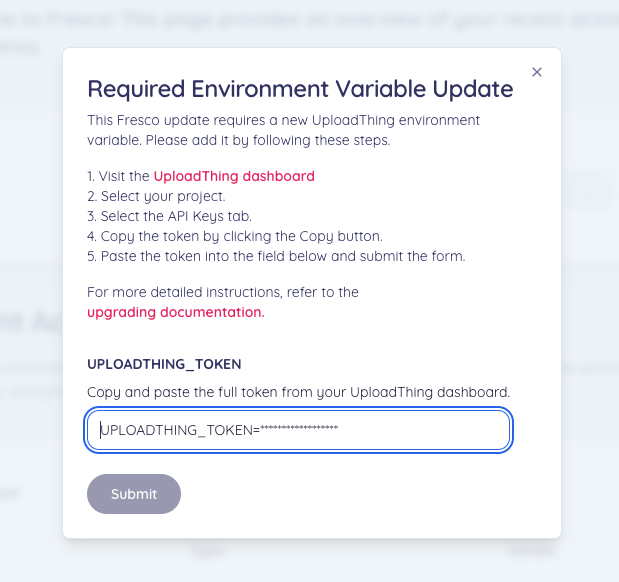
Visit your Fresco dashboard. A message will appear informing you that your UploadThing environment variable is out of date.
-
Paste your new environment variable into the UPLOADTHING_TOKEN field on the form.