Design Protocolskey concepts
Codebook
Details
The protocol's codebook provides an overview of all entities and variables defined in your protocol. This centralized view helps you ensure consistency across stages and makes it easier to plan your data analysis before deploying your interview.
Architect automatically constructs the codebook as you create variables in your protocol. How you open it depends on which version of Architect you use:
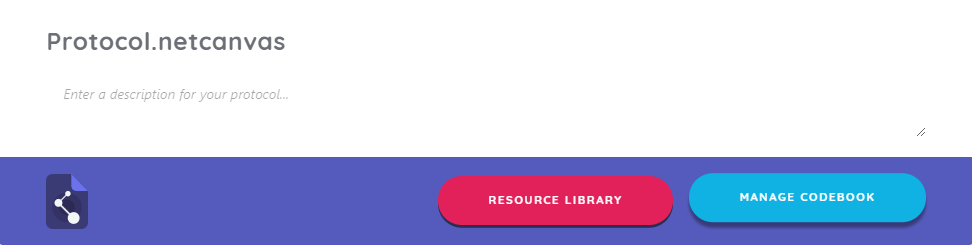
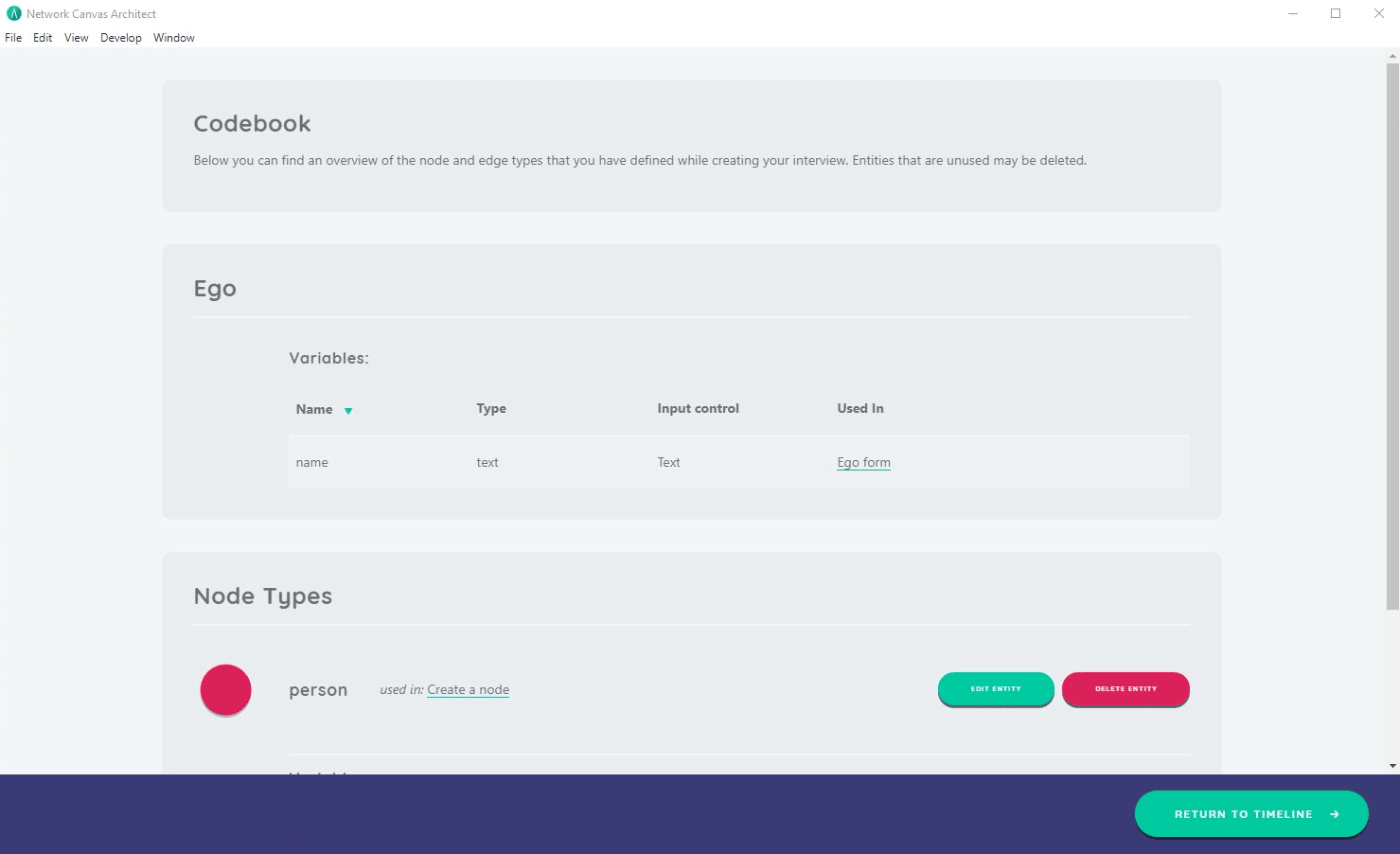
- In Architect Classic, click the Manage codebook button at the top of a protocol file.
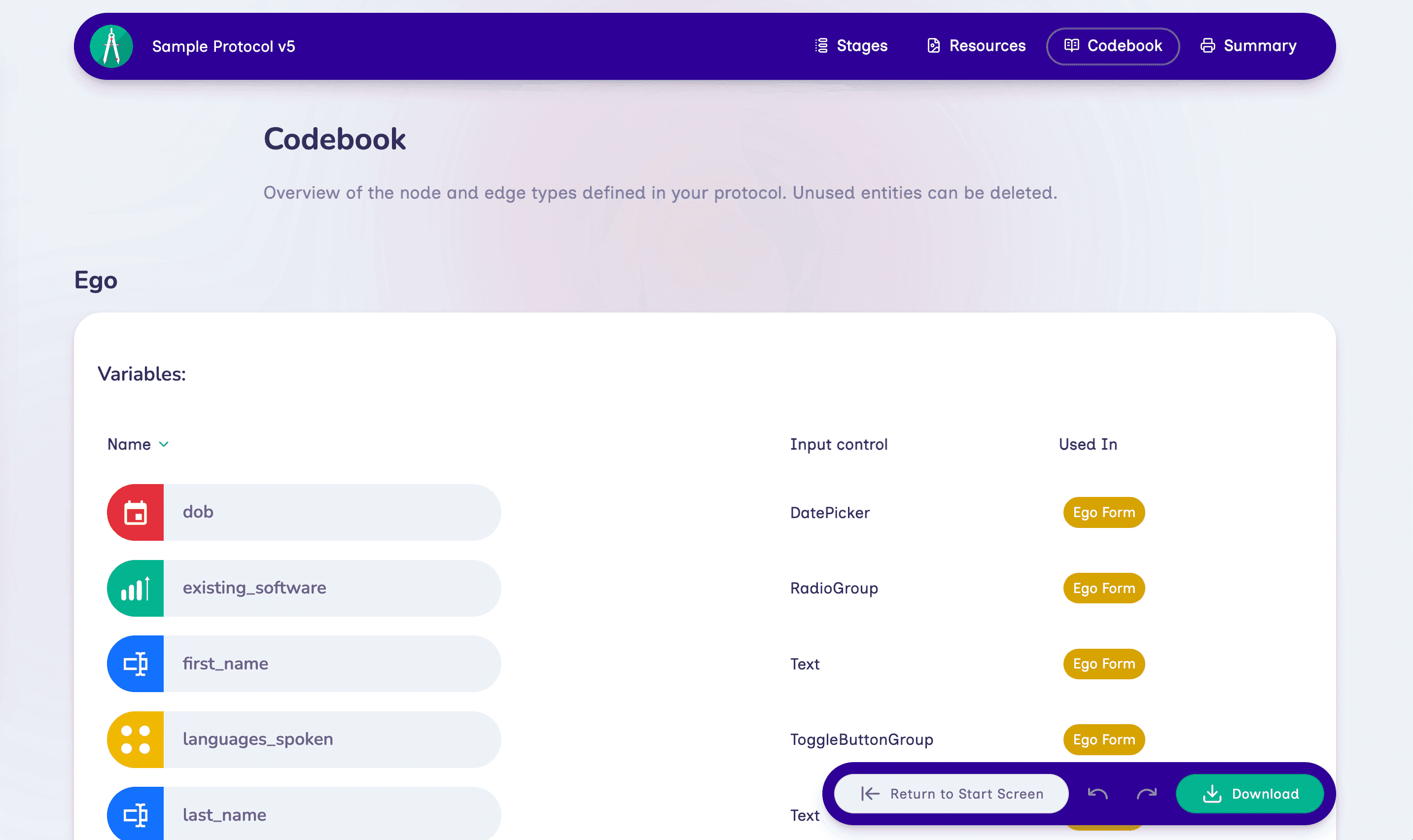
- In Architect, open the Codebook page from the navigation bar at the top of the editor.
Entity types
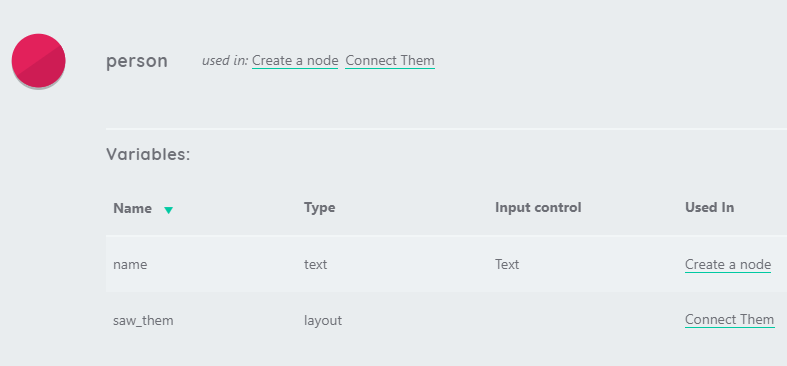
The codebook organizes entities by entity type -- ego, node, and edge, and organizes variables by entity. You can edit node and edge types from the codebook using the Edit Entity button. Each node and edge type lists the stages where they are used, and you can navigate to those stages by clicking on one of the "used in" stage names.
In both versions of Architect you can customize an entity type's name and color. Architect goes further for node types, letting you also set the shape and icon used to represent the node across interfaces.
In Architect, a new node or edge type starts on the next color in the palette, so each type you add looks different from the last. A node type's icon is chosen from a searchable list of the Network Canvas icons followed by the Lucide icon set: type a few letters of an icon's name (for example "user plus") and pick it from the icons shown.
Default node shape
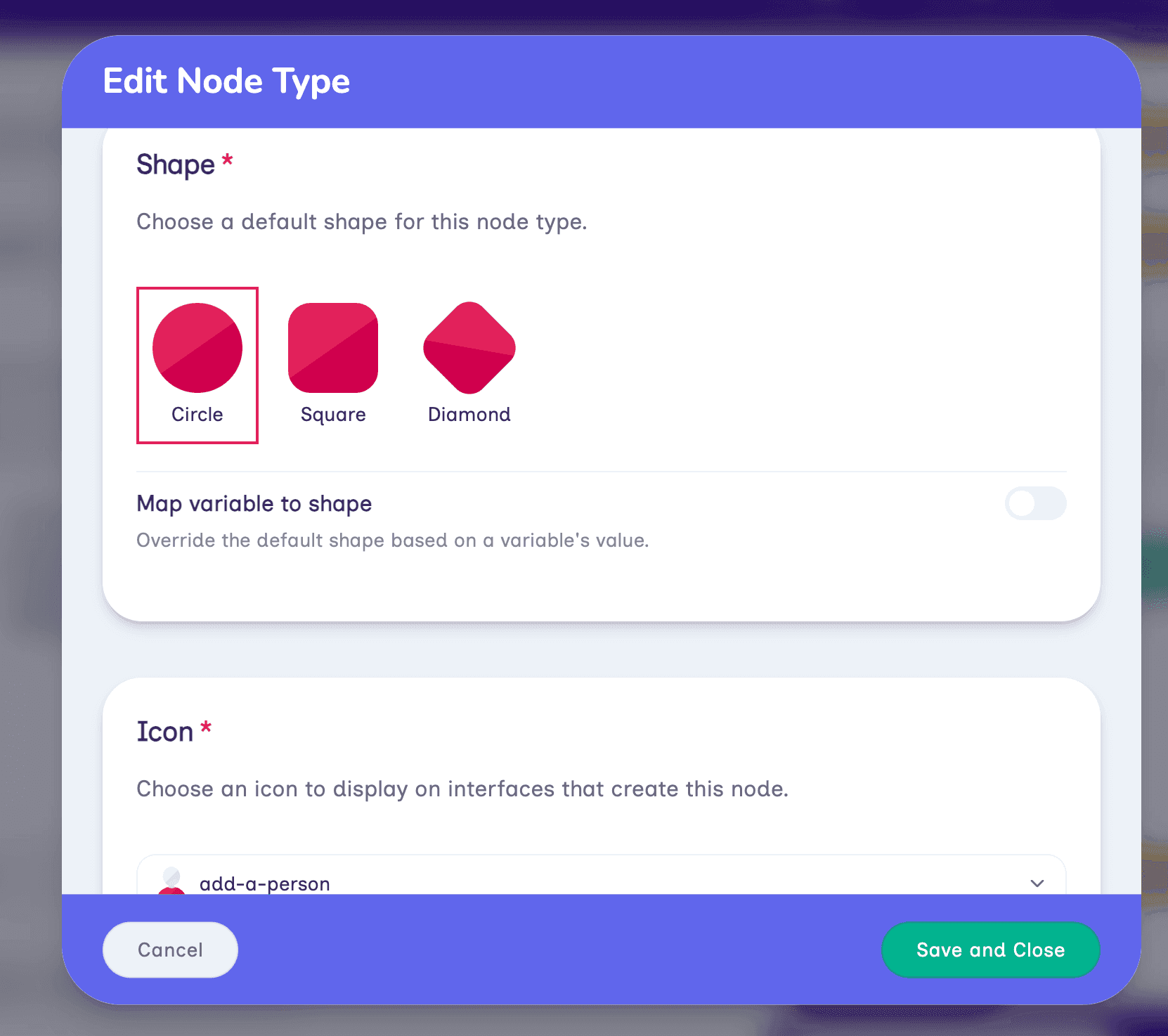
Every node type has a default shape: circle, square, or diamond. When no mapping is configured, every node of that type uses the default shape.
Mapping a node variable to shape
In Architect you can also make a node type's shape dynamic, so that nodes within the same type can change shape according to an attribute value. Architect calls the codebook definition a variable; the value stored on a particular node is its attribute.
To configure a mapping:
- Edit the node type and choose its default shape.
- Enable Map attribute to shape.
- Select one of the node type's attributes.
- Assign shapes to the values that should override the default.
A node type's shape can be mapped from one variable at a time. The mapping works in one of two ways depending on the variable you choose:
- For categorical, ordinal, or boolean variables, you assign a shape to each discrete value. Any value you leave unmapped falls back to the default shape.
- For number or scalar variables, you define up to two numeric thresholds. Values below the first threshold use the default shape, and each threshold sets the shape used at or above its value.
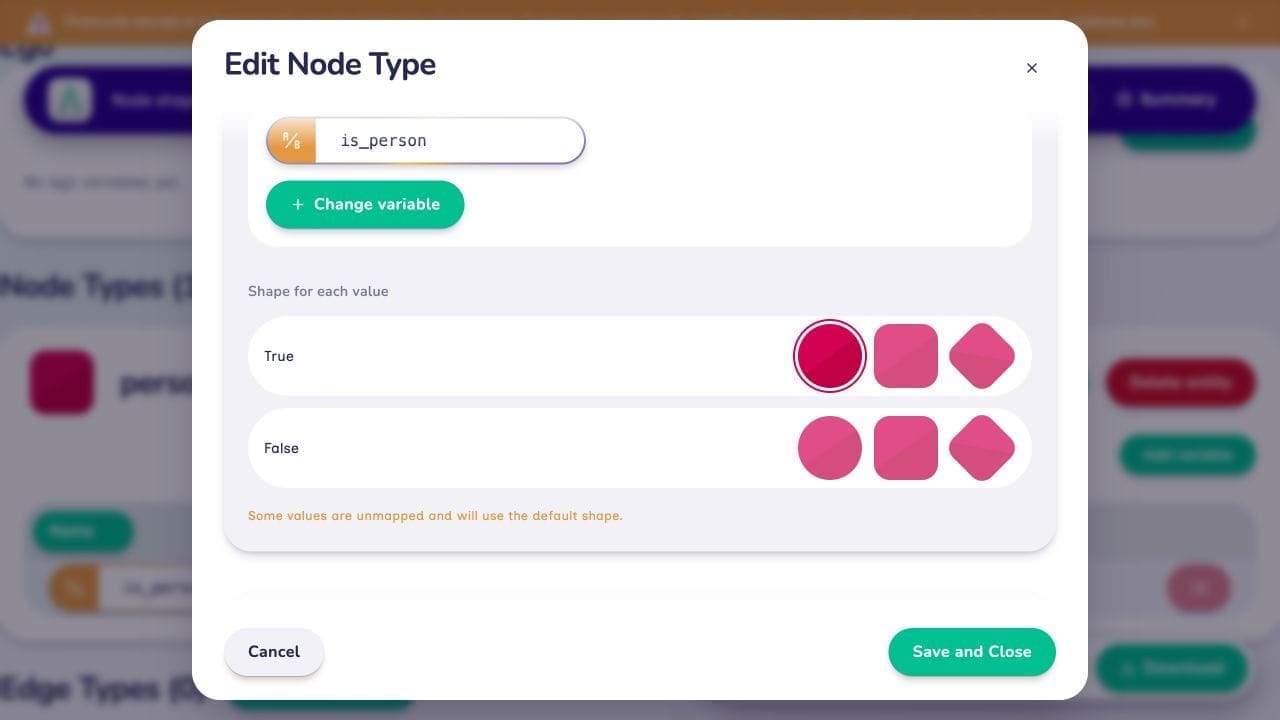
The shapes available are the same as for the default shape: circle, square, and diamond. You choose each one, including the default, by clicking its swatch, drawn in the node type's own color. Architect points out any values that are still unmapped and will use the default shape, and won't save a mapping for a number or scalar attribute until you have added at least one threshold.
Boolean example: people and places
Suppose a node type contains both people and places, identified by a boolean variable named is_person. To show people as circles and places as squares:
- Choose Square as the default shape.
- Enable Map attribute to shape and select
is_person. - Assign Circle to True.
- Leave False unmapped so that it uses the default square.
is_person value | Resulting shape |
|---|---|
true | Circle |
false | Square (the default) |
| Not recorded | Square (the default) |
Good to know:
The default shape is also used when the selected variable has not been recorded. If an unknown value should look different from a place, choose Diamond as the default, then explicitly map True to Circle and False to Square.
Variables
Each variable lists the name, type, input control, and where it is used. You can navigate to any of the stages a variable is used in by clicking on one of the "used in" stage names just like the entity types.
In Architect, changes you make to the codebook from inside a stage editor — such as creating an attribute, renaming it, or changing its options or validation rules — are saved to the codebook immediately. Cancelling your edits to the stage doesn't undo them, because an attribute belongs to every stage that uses it.
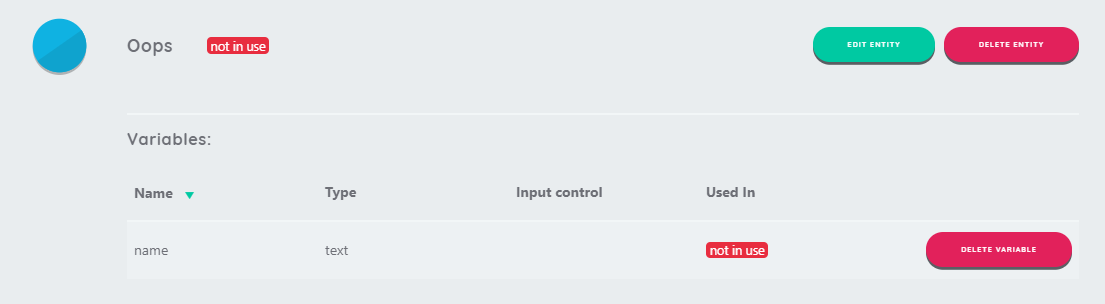
If a variable is defined but later becomes obsolete, you can see this as an unused variable within the codebook, marked not in use. Only variables that are unused can be deleted from the codebook. Entity types can also only be deleted if they are unused in the protocol.
Network assets
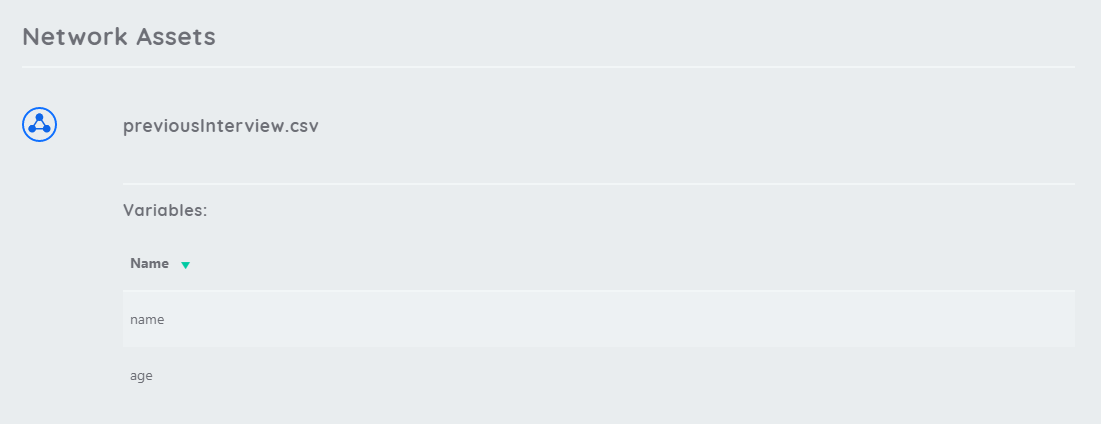
Codebooks also contain a summary of network assets when external network data has been included in a protocol. The heading row of network data will be used as the variable names, and the codebook lists these variable names as a summary for each external network asset.
Related concepts
- Variables - Understanding variable types and configuration
- Input Controls - Choose appropriate controls for your variables
- Resources - Import external data files including network rosters
- Forms - Create forms using variables from your codebook
- Interfaces - Learn about Interfaces that use variables from the codebook