Design Protocolskey concepts
Resources
Details
In Architect, resources are any external files that you use within your interview. These can be media files, such as audio, images, or video. They can also be network data files that you can use as a roster, or API keys that let an interface communicate with a third-party service. Careful use of resources can improve the interview experience for your participants or enable different types of interview workflow.
Once you add resources to your protocol, they are stored as part of the protocol itself, so you must handle updating or removing them from within Architect. Where the protocol — and therefore its resources — is stored depends on which version of Architect you use:
- In Architect Classic, your protocol is a
.netcanvasfile on your computer, and resources are stored inside that file. - In Architect, your protocol and its resources are saved in your browser's library as you work, and are embedded into a
.netcanvasfile when you download it. Because this library lives in your browser rather than as a file you control, download a copy of any protocol with resources you can't afford to lose — see Saving and backing up.
Take Care!
Using large numbers of resources or poorly optimized resources in your protocol can heavily impact performance. This means that protocols take longer to install on devices and some stages may take much longer to load. Take special care to appropriately resize and compress your resources before importing them, and ensure that you test your protocol on your intended field devices to verify performance levels.
As a general guide, aim to keep your total protocol file size under 10MB.
Adding resources to a stage
Many stages allow you to add resources directly while configuring them. This is designed to provide a more seamless flow when creating your interview protocol. Examples of this include background images on the Sociogram Interface, roster files in either of the roster Name Generators, and media files on the Information Interface.
If the stage you are configuring uses a resource, it will provide an interface for you to add it directly and will give instructions about which type of resource is required.
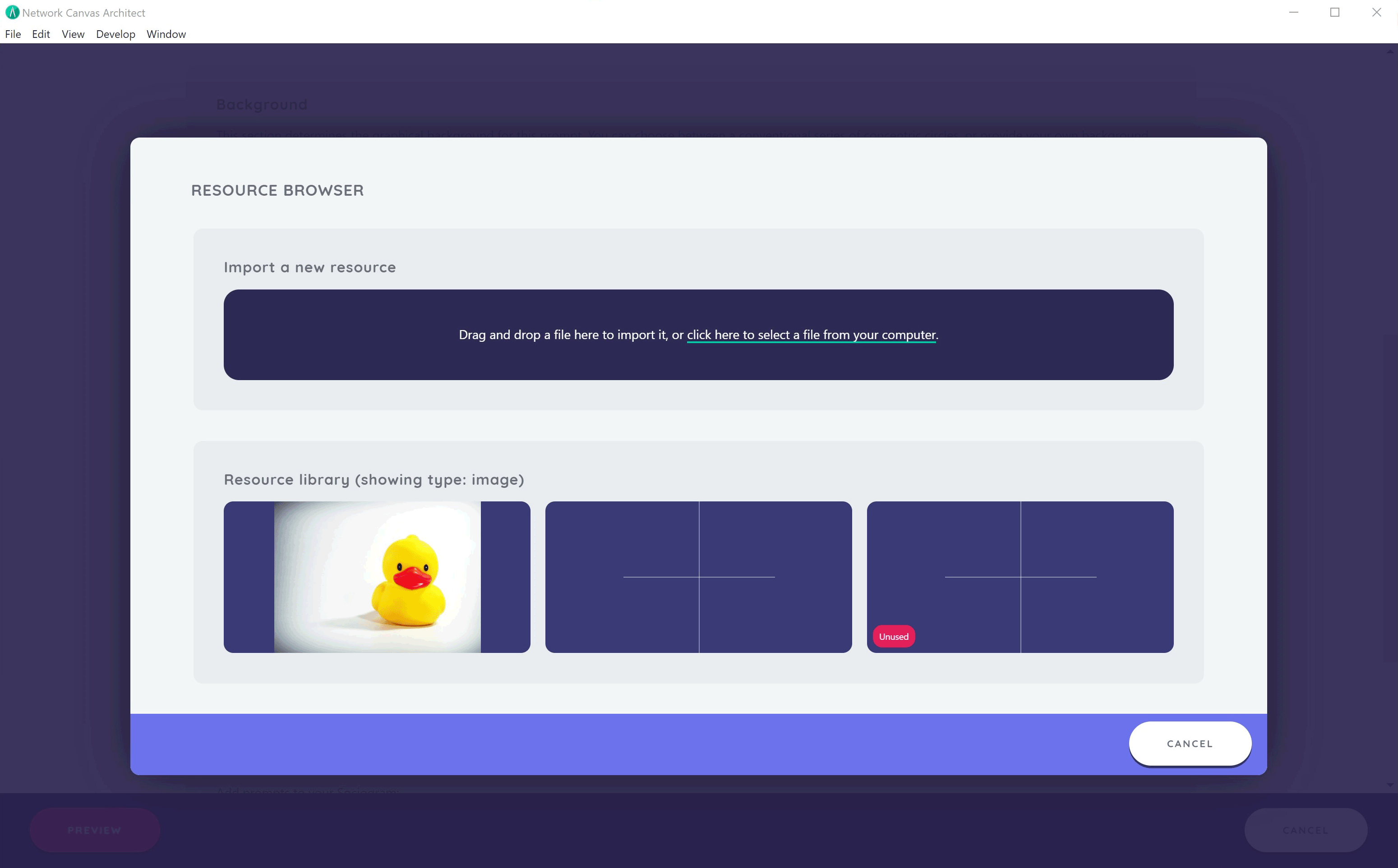
Adding and removing resources from the resource library
For a broader overview of all resources within your current protocol, open the Resources page from the navigation bar at the top of the editor. This is the resource library.
In the resource library screen, you can browse, filter, and delete any existing resources, as well as add new ones. To add a new resource to the resource library, drag and drop a file into the designated area or browse for the file you wish to import.
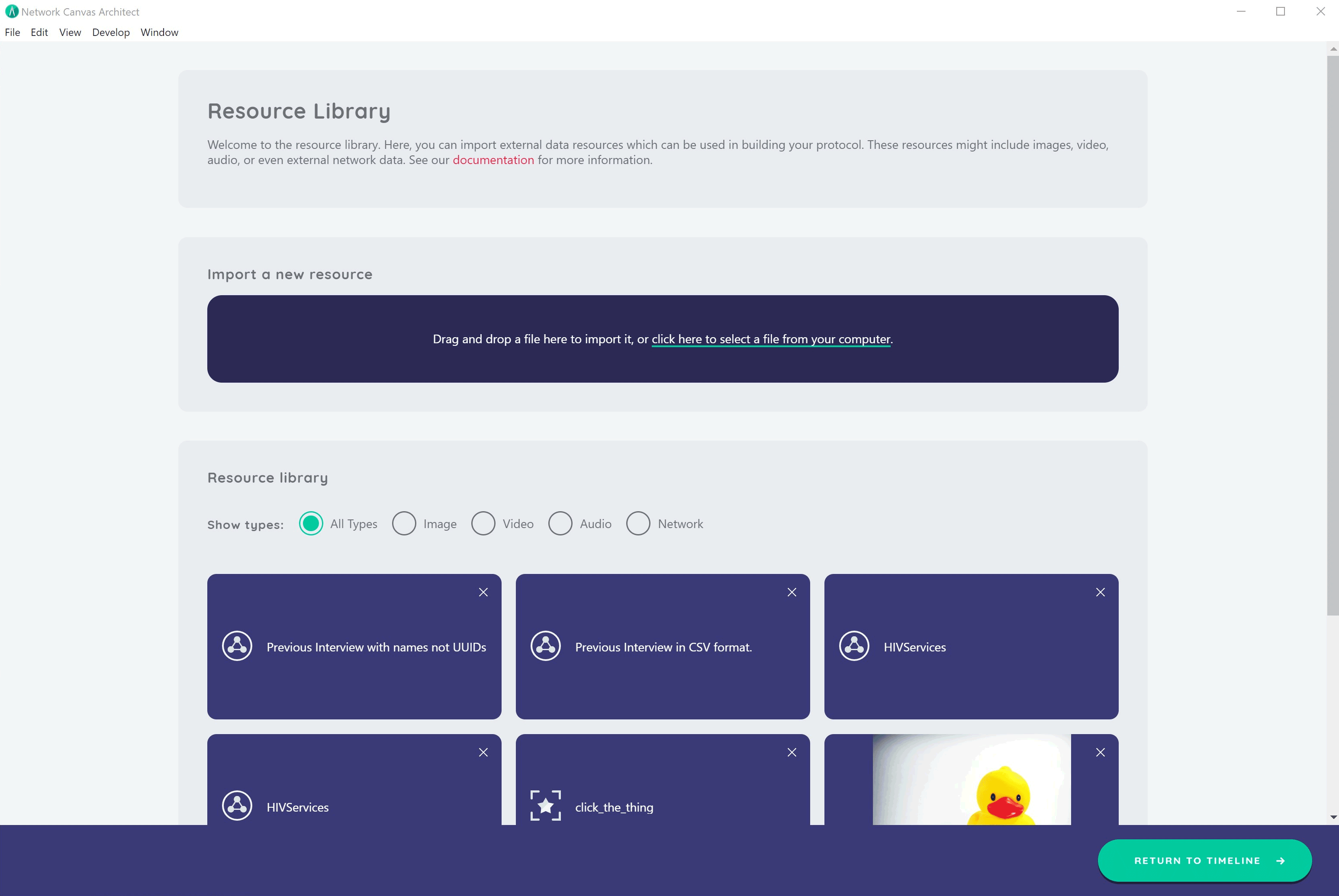
You will notice that existing resources that are unused show a red unused pill. This indicates that you can delete them. Attempting to delete a resource that is in use within your interview will be prevented. You must first update or remove all uses of a resource before you can delete it.
Missing resources
A .netcanvas file stores its resources inside it. If a protocol file refers to a resource that isn't actually included in it, Architect still opens the protocol, and shows a Some resources are missing message naming each missing file. Every stage, prompt and variable in the protocol is kept exactly as it was.
To fix the protocol, open the Resources page, where each missing resource is marked File missing, and add the file again. Until every missing file has been restored:
- The protocol can't be downloaded. Architect refuses rather than producing a file without the resources, and the message lists the files you need to add again. Nothing is lost — the protocol stays in your library as it was.
- Interviewer and Fresco won't accept it. They refuse any protocol with missing resources, because a resource that never loads would appear broken to a participant partway through an interview. Restore the files in Architect, then download the protocol again before deploying it.
A protocol file whose contents are damaged is reported as damaged rather than opened. Try a backup, or the copy you originally downloaded.
Supported resource types
Image
Interviewer supports JPEG, GIF, PNG, and SVG image file formats. For a background that adapts to portrait and landscape canvases, see Responsive SVG Backgrounds.
Audio
Interviewer supports MP3, AIFF, M4A, and MP4 audio file formats.
Video
Interviewer supports MP4 and MOV video file formats. Take special care when using video to make your files as small as possible.
When you add a video to an Information stage, fill in the item's Description. A participant using a screen reader hears it as the video's name, in the same way that an image's description is read as its alternative text and an audio item's description names its player. If you leave it empty, the screen reader reads the video's file name instead, so write a short description for every video, as you would for images and audio.
Network
Interviewer supports network data in CSV format. The heading row will be used to set variable names for any nodes brought into the interview. Ensure that you have a column called name to take advantage of automatic node labeling. Download a simple example CSV file from here.
API keys
The Geospatial interface communicates with a third-party service that requires an API key — a Mapbox token used to load maps. Unlike the other resource types, an API key is a credential you paste in rather than a file you upload, but it is stored in the resource library alongside your other resources, where it can be copied, deleted, or replaced as needed.
Related concepts
- Interfaces - Learn which Interfaces use resources
- Responsive SVG Backgrounds - Create a background that adapts to portrait and landscape canvases
- Codebook - View network asset summaries in the codebook
- Network Filtering - Filter roster data on stages
- Variables - Understand how roster columns become variables