Design Protocolssaving and backing up
Saving and backing up
Architect and Architect Classic store your protocols in different ways. Understanding how — and what it means for backing up and moving your work — will help you avoid losing a protocol you have spent time building.
How Architect saves your work
Architect saves automatically. As you edit, your changes are continuously written to a library stored inside your web browser. There is no Save button, and no file to keep track of while you work — the protocol you see on the home screen is always up to date with your latest changes.
This is different from Architect Classic, where your protocol is a .netcanvas file on your computer that you save explicitly.
Your library is per-browser and per-device
Because the library lives in your browser's local storage, it is tied to this browser, on this device. Your protocols are never uploaded to a server.
That means a protocol you create in one browser will not appear if you:
- open Architect in a different browser (for example, switching from Chrome to Firefox),
- open it on a different computer or device, or
- open it in a private or incognito window.
To work on a protocol somewhere else — or simply to keep a safe copy — download it as a .netcanvas file, as described below.
Opening a protocol in more than one tab
Only one browser tab can edit a protocol at a time, so that two tabs never overwrite each other's changes.
If you open a protocol that is already open in another tab, it opens read-only, and a banner at the top of the screen tells you so. You can still look through the whole protocol: move between the Stages, Codebook, Resources and Summary pages, open each stage, search the codebook, preview resources, and print the Summary. Anything that would change the protocol is switched off. Download still works, and gives you everything the other tab has saved so far.
To edit in this tab instead, close the other tab, or return to the home screen there. This tab becomes editable straight away, on the page you were looking at. If you were partway through editing when the other tab opened the protocol, the banner explains your options.
Backing up and moving protocols
At any time, use Download on the protocol overview screen to export your protocol as a .netcanvas file. This file is a complete, self-contained copy of your protocol, including any roster data, images, or media it uses.
Because the file must be complete, Architect won't download a protocol whose resources are missing or can't be read. Instead it shows a message naming the files concerned; add them again on the Resources page, then download. See Missing resources.
A downloaded .netcanvas file lets you:
- Keep a backup outside the browser, in case your browser's data is cleared.
- Move your work to another browser, computer, or collaborator — open it again from the home screen.
- Deploy your protocol in Fresco or Interviewer to run interviews
Download your protocols regularly
Because Architect stores your protocols in the browser rather than as files you control, downloading a .netcanvas file is the only way to guarantee you have a copy you won't lose. Get into the habit of downloading after any significant work — and always before clearing your browser data or switching devices.
What removes your protocols
You can manually remove protocols from the Recent library in two ways:
- Delete a single protocol using the three-dots menu on its row.
- Clear all protocols to permanently remove every protocol in this browser's library at once.
Anything that clears your browser's storage will also remove the protocols saved in Architect. This includes:
- Clearing your browsing data for the site (history, cookies, and site data).
- Closing a private or incognito window, which discards everything created in that session.
These actions cannot be undone, and a removed protocol can only be recovered from a .netcanvas file you downloaded earlier.
Storage limits
Browsers limit how much data a site may store, and Architect shares that allowance with the rest of the site's data. Very large protocols, particularly those with many or large media assets, consume more of this allowance.
Browsers also treat this kind of local data as best-effort: under heavy storage pressure, or after long periods without visiting the site, a browser may remove it to reclaim space. This is uncommon in normal use, but it is another reason to download a .netcanvas copy of any protocol you cannot afford to lose.
Undo and redo
While you are editing a protocol, Architect keeps a history of your changes. Use Undo and Redo in the editor toolbar to step backward and forward through recent edits — useful for recovering from a change you didn't mean to make.
Undo and redo work on changes that have been saved to the protocol: saving a stage, editing the codebook or resources, and deleting a stage, type, attribute or resource. They don't step through typing inside an editor you still have open — to throw away unsaved changes to a stage, cancel the stage editor instead. When you undo or redo a change, Architect takes you to the screen that shows it (such as Stages, Codebook or Resources) so you can see the result.
The history lasts while the protocol remains open, and is separate from the backups you create by downloading a .netcanvas file.
How Architect Classic saves your work
In Architect Classic, your protocol is a .netcanvas file on your computer that you save and manage yourself. Unlike Architect, there is no in-browser library: you choose where the file lives, and Architect prompts you to save your changes as you work.
Because it is a normal file, you can move it, rename it, and copy it like any other. The .netcanvas file is self-contained. Any resources you add, such as roster data, images, or video, are embedded inside it.
Finding your protocols
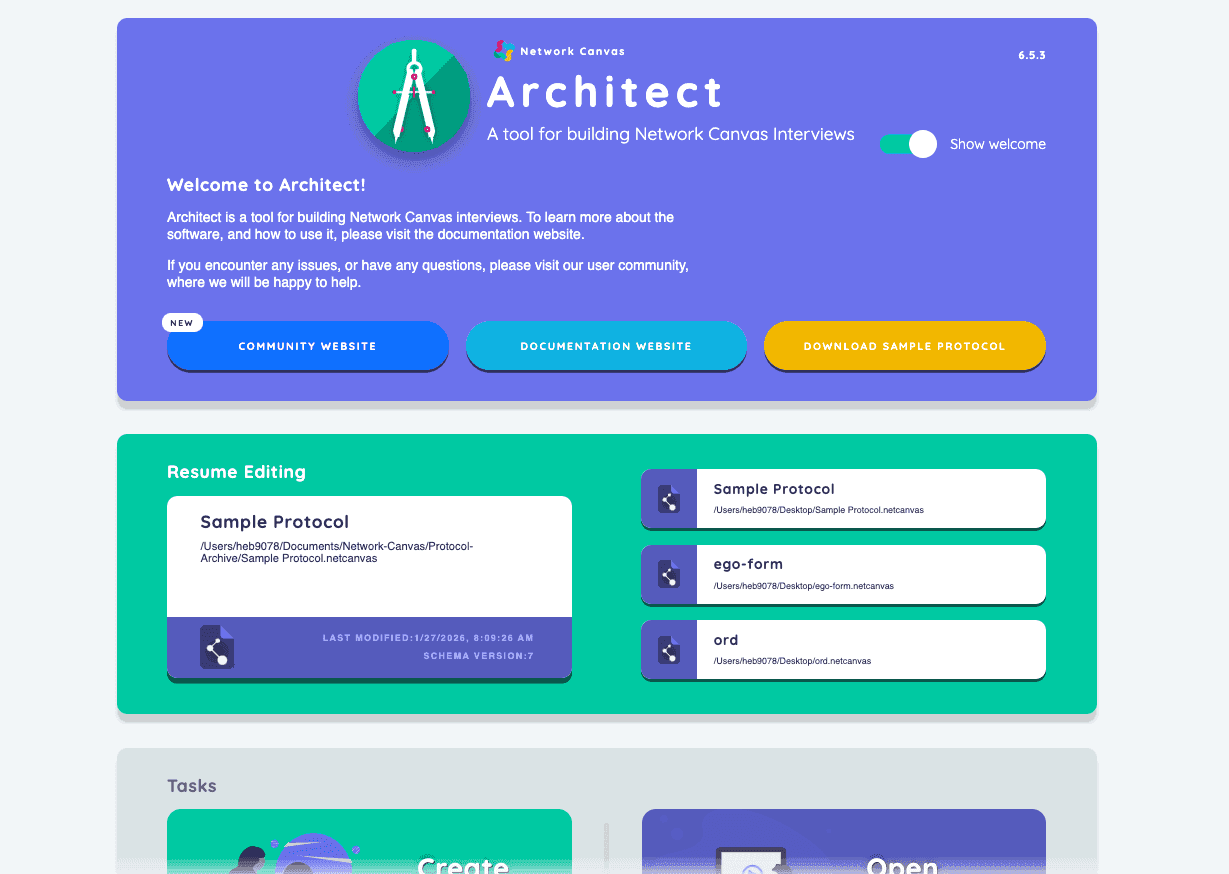
When you open Architect Classic, the Resume Editing section of the start screen lists the protocols you have worked on recently. Each entry shows the protocol's name, its full location on your computer, the date it was last modified, and the schema version it was built on, making it easy to reopen it.
Keeping your work safe
A few practices keep your work safe:
- Back up regularly. Keep copies of your
.netcanvasfile somewhere other than your working computer, such as a cloud drive or external storage. - Version after deploying. Once you have deployed a protocol, save a renamed copy before making further changes, so each deployed version stays intact. See The Protocol File for why this matters.
- Follow a workflow. The Interviewer Online and Offline Workflows tutorial walks through deploying protocols and organizing and backing up your files for both online and offline studies.