Design Protocolstranslating your protocol
Translating Your Protocol
Good to know:
Localization requires schema 9. Protocols are localized in Architect and can be fielded in Fresco 5.0 or later, or in Interviewer 9.0 or later. Architect Classic and Interviewer Classic cannot open a schema 9 protocol.
Overview
Many network studies recruit participants who do not share a language. Studies of migration and transnational ties, comparative studies across countries, and studies of linguistically diverse local populations often need an instrument that each participant can complete in the language they read most comfortably. Before schema 9, a Network Canvas protocol was written in a single language, and a multilingual study had to maintain a separate protocol for each language. Every structural change then had to be repeated in each copy, and any divergence between the copies became a difference in measurement.
Schema 9 replaces this arrangement with a single protocol that holds several languages. The protocol has one sequence of stages, one codebook, and one set of skip logic and filtering rules. Only the text that participants read varies between languages. Because variable names, node and edge types, and the values of response options are shared, interviews conducted in different languages produce data with an identical structure, and the data can be pooled without recoding. A shared structure does not by itself establish that the measures are equivalent across languages, which is the subject of the next section.
The Transnational Networks template in Architect is an example of this approach. It is written in English, Hungarian and Spanish, and can be opened from the Templates tab of the home screen.
Translation as part of instrument design
Translating a protocol is a methodological task as well as a linguistic one. The aim is equivalence of meaning: a participant reading the Spanish version of a prompt should understand the same task, and report the same kind of relationship, as a participant reading the English version. Literal correspondence between the two texts does not guarantee this, and in some cases it works against it (Beaton et al., 2000; Wild et al., 2005).
Name generators deserve particular attention, because their wording defines the boundary of the network that is elicited. Cognitive interviews with English-speaking respondents have shown that even a widely used name generator, the General Social Survey item about discussing "important matters", is understood in several different ways, and that its interpretation is shaped by the questions that precede it (Bailey and Marsden, 1999). Translation adds a further source of variation. The relational terms on which name generators depend, such as "friend", "close" or "family", may not correspond exactly between languages and cultures, and the same General Social Survey item has been examined separately as it functions in a Chinese context (Ruan, 1998). A translated name generator should therefore be evaluated by the relationships it elicits in the target population as well as by the accuracy of its wording.
The Cross-Cultural Survey Guidelines favor team-based translation over a single translator followed by back-translation, although guidelines for adapting health measures retain back-translation as a required step (Beaton et al., 2000; Wild et al., 2005). The TRAPD model (Translation, Review, Adjudication, Pretesting and Documentation) has two or more translators prepare independent versions, which are then reviewed together with a subject-matter expert. An adjudicator settles the final wording, the result is pretested with members of the target population, and decisions are documented for later users of the data (Survey Research Center, 2016; Walde and Völlm, 2023). Back-translation, whose use as a check on equivalence was set out systematically by Brislin (1970), remains useful as one source of evidence within such a procedure.
The translation table, which presents every text beside its translations, can be used for review and adjudication, and the Summary tab prints the whole protocol in every language for reviewers who do not use Architect. Preview mode lets the research team check each stage in each language before the translation is pretested with participants.
Some adaptation lies outside the text of the protocol. Images, videos, audio, rosters and maps are the same in every language (see What stays the same in every language), so a resource that contains words should be chosen to suit every participant, or explained in text that can be translated. Response options may also need adaptation. Kinship terms, educational qualifications and institutions often have no direct equivalent in another language, and the categories themselves may need to change.
How a localized protocol is organized
A localized protocol has a set of protocol languages, one of which is its default language. Every text that participants see, such as a prompt or the label of a response option, is stored once, with a translation for each language into which it has been translated. Each language is identified by a language code, such as es for Spanish or pt-BR for Brazilian Portuguese, and a protocol may include regional variants of the same language, such as Spanish (es) and Mexican Spanish (es-MX).
A text does not need a translation in every language. It must have a translation in at least one of the protocol's languages, and this need not be the default language. The only exception is wording that Network Canvas supplies: a protocol holds it only where it has been changed, and a protocol whose default language Network Canvas has no wording in lacks it there until it is written. Where a translation is missing, participants see the text in another language, chosen by the rules described in The default language and which translation participants see. Architect therefore reports a missing translation as a warning, and a protocol with missing translations can still be saved, previewed and fielded.
What can be translated
Every text that participants read can be translated. This includes:
- stage names, which participants see in the interview's list of stages
- prompts, Ego Form introductions and panel titles
- form titles, and the questions and hints of form fields, including the labels and hints of Network Composer fields
- the labels of response options, and the labels at each end of a slider
- the titles, text and resource descriptions of Information stages
- the text of other interfaces, such as the explanation on an Anonymisation stage
- the labels of the attributes and edge types that a Narrative preset highlights and draws (see Labels in a Narrative stage's legend)
- the labels of the edge types that a Network Composer stage allows participants to draw (see Labels for Network Composer edge types)
- the wording that a stage shows around its content, such as the Finish Screen's button, a Name Generator's minimum and maximum notices, or the tooltips of a Network Composer's tools (see Stage wording)
- the buttons and messages shared by every stage, such as Back, Continue and the messages shown when an answer is not valid, and the words every stage of one kind shows alike, such as a Family Pedigree's zoom buttons (see Interview text)
What stays the same in every language
- Names and values. Attribute names, node and edge type names, and the values of response options appear in the exported data, so they are identical in every language. Participants never see a codebook name. Where a stage presents a node type, edge type or attribute to participants, it does so through a label of its own, and that label can be translated.
- Resources. Images, videos, audio, rosters and maps are the same in every language.
- Words only screen readers read, such as the names of buttons that show only an icon and the announcements made as a participant works. These are in English whatever language the interview is shown in.
Managing your protocol's languages
Choosing languages when creating a protocol
The Create New Protocol dialog asks for the Protocol languages, the languages in which participants can take the interview. Architect suggests the language in which its own interface is shown, and further languages can be found by searching the list. When more than one language is chosen, the dialog also asks for the Default language.
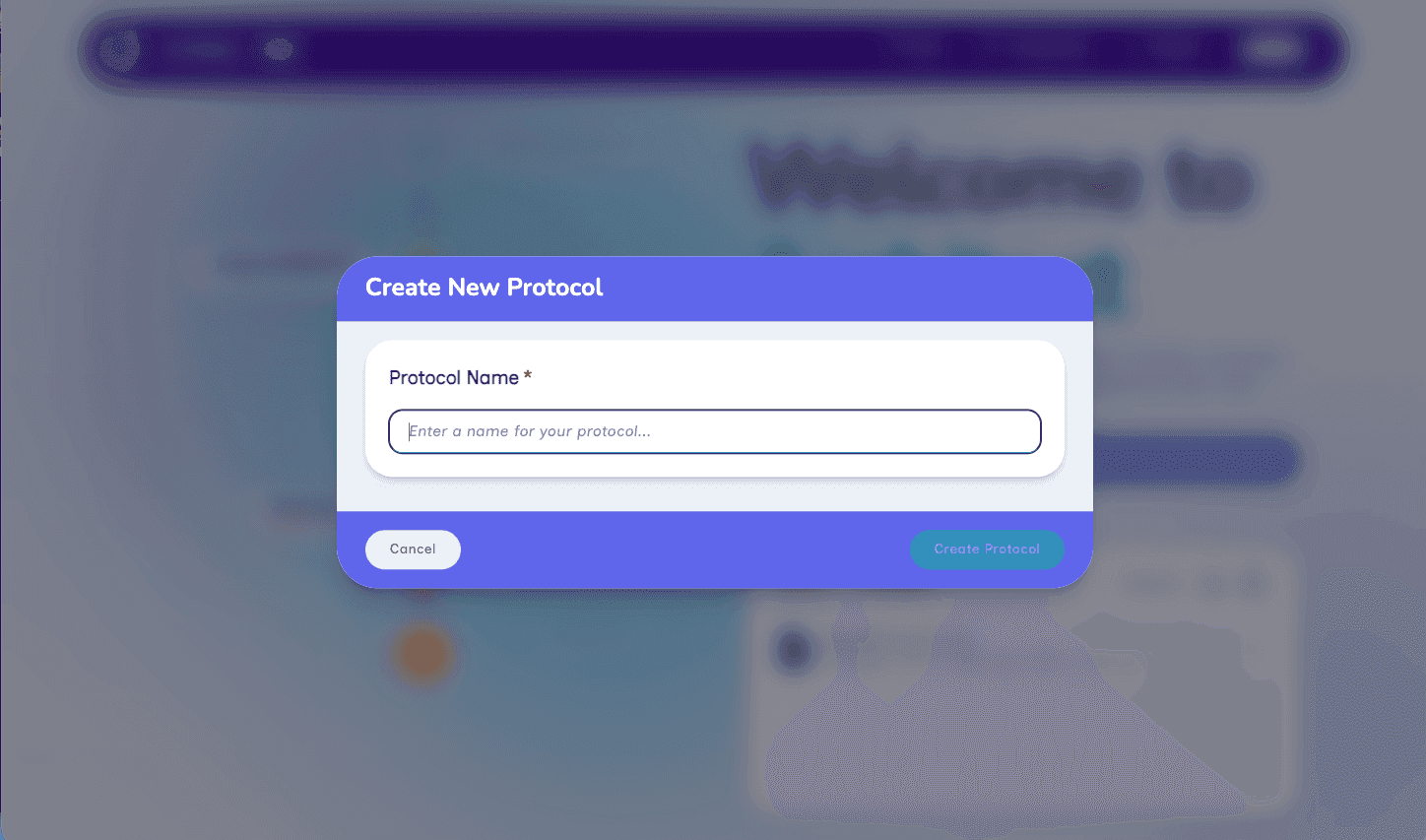
A protocol created from a template is already written in a language, so Architect does not ask. The templates supplied with Architect are written in English (en), and the Transnational Networks template is also written in Hungarian and Spanish.
The Languages page
The Languages page, opened from the protocol's navigation bar between Codebook and Summary, lists the protocol's languages. A warning symbol appears on the Languages link while any translation is missing. Each language is listed with:
- its name, its name in its own language, and its language code
- a Default badge, on the default language
- a progress bar and a count of the texts translated into it, such as "46 of 209 strings translated"
- a Missing translations badge, while some texts have no translation in it
- three buttons: Edit translations (a pencil), which opens the translation table showing that language beside the default language; Change to a different language (two arrows), described in Changing the language your text is recorded as; and Remove (a trash can), described in Removing a language
Once a protocol has more than one language, the page also explains the order in which participants are shown translations, offers the Default language list, and provides an Open translation table button. Languages have no order of their own. Architect lists them alphabetically by name, and the order in which they are stored makes no difference to participants.
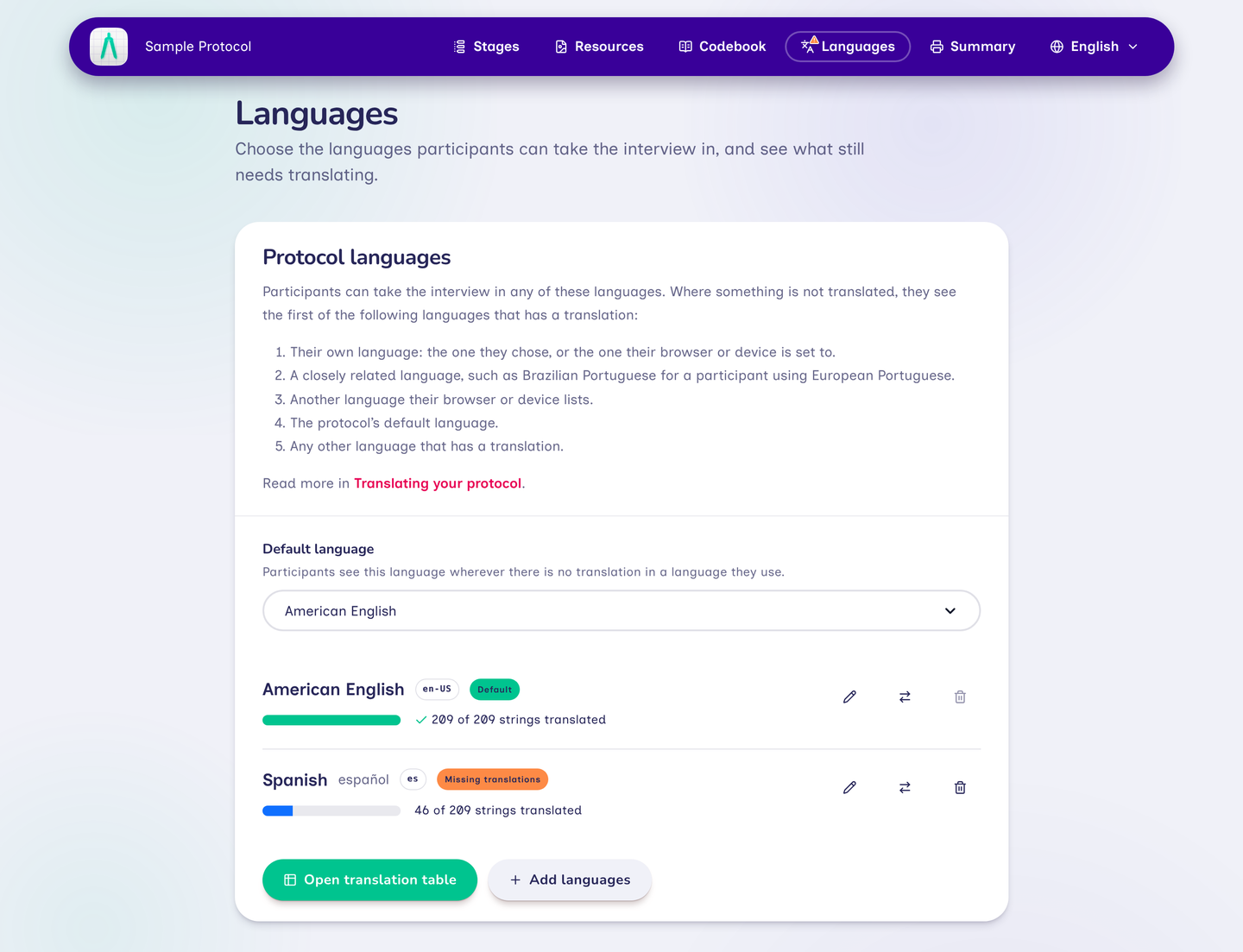
The same list, with the same rules, appears in the editor of a Language Chooser stage, so that languages can be managed without leaving the stage. A change made there also applies to the stage's unsaved changes. Because the translation table opens over the Languages page, opening it from a Language Chooser stage leaves the stage, and Architect asks whether to discard any unsaved changes first.
Adding languages
Add languages opens a dialog in which one or more languages can be chosen. A new language begins with no translations of the researcher's own text. Until that text is translated, participants who use the new language see it in another language.
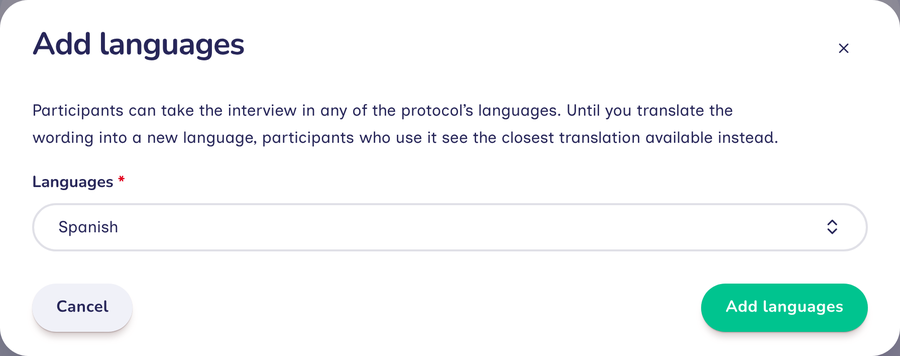
There are two exceptions, both text that Network Canvas has wording for in English, German, Spanish, French, Italian, Dutch, Brazilian Portuguese, and Simplified and Traditional Chinese.
The first is the wording an interview shows that the researcher has not changed (see Words Network Canvas supplies):
- the stage wording of each stage that has it, including the wording of a Family Pedigree's name question and its participant wording, with the completeness checklist, and the panel title of a Name Generator for Roster Data, "Available to add"
- the interview text
A protocol does not hold this wording. The interview shows Network Canvas's wording for it in each of these languages, so when one of them is added, that wording is already there, and nothing is written into the protocol. Architect shows it in the stage editor and the translation table, where it can be changed, and a protocol holds only the wording that has been changed. Wording changed in one language still reads as Network Canvas words it in the others, so a protocol whose English "Continue" button reads "Next" shows the French "Continuer" when French is added, which can then be changed to match. If Network Canvas later corrects its own wording, the correction reaches every protocol that has not changed that text.
The second is text that Network Canvas writes into a protocol as a starting point, and which is then the researcher's own:
- the closing and finished text of each Finish Screen, and its stage name
- the sex assigned at birth answers and the kinds of parent in a Family Pedigree
When one of these languages is added, Architect fills in this text in that language wherever it has no translation yet. It does so even where the text has been reworded in the protocol's other languages. Adding a language never replaces a translation that is already there.
Each of these languages is written for one region: the one assumed when a language is named without a region. Network Canvas's English is American English, its Spanish is the Spanish of Spain, its French is the French of France, its Traditional Chinese is the Chinese of Taiwan, and so on. A language counts as one of these when it is the language itself or the language in that region, so American English (en-US) has the English wording and Spanish as spoken in Spain (es-ES) has the Spanish wording.
Network Canvas has wording only for a language that is one of these. A regional variant written for another region, such as Mexican Spanish (es-MX) or British English (en-GB), and a language for which Network Canvas supplies no wording, such as Japanese (ja), have none, and their participants see it in another of the protocol's languages until it is translated.
When a regional variant of one of these languages is added, or a protocol is created in one, Architect asks whether to also add the language it is a variant of: for Mexican Spanish, it asks "Also add Spanish?". Network Canvas has wording for the added language, and participants using the variant see that wording wherever the variant has no text of its own (see The default language and which translation participants see). The added language is never made the default. A language that is merely close to one of these, such as Galician to Spanish, is not offered one, because its participants would then read a different language.
When the default language has no supplied wording
Every text an interview shows must have wording in the default language before the protocol can be downloaded, counting Network Canvas's wording for that language. When the default language is one for which Network Canvas supplies no wording, such as Mexican Spanish or Japanese, the protocol can still be edited and saved, but a notice on the stage list explains that it can't be downloaded yet, and Architect refuses to download it, until one of the following is done:
- The supplied wording is translated into the default language. The notice's Show the wording to translate link opens the translation table showing the text that has no translation in that language.
- A language for which Network Canvas supplies wording, such as Spanish, is made the default.
Until then, each stage's Customize built-in wording section is always shown, with no switch to turn it off, so the wording can be written in the stage editor as well as in the translation table.
This applies to regional varieties of English too. A protocol whose default language is English or American English has the supplied wording; one whose default language is British or Australian English does not, and Architect offers to also add English.
For example, a protocol created in Mexican Spanish, with Spanish also added when Architect asks, starts with Mexican Spanish as its default language and Network Canvas's wording in Spanish only. Either Spanish is made the default, so that participants using Mexican Spanish see the Spanish wording wherever no Mexican Spanish text has been written, or the whole of the supplied wording is translated into Mexican Spanish.
A supplied translation is ordinary text, and it can be edited like any other.
The default language and which translation participants see
The default language is the language in which participants start the interview when their browser lists none of the protocol's languages. It is chosen from the Default language list on the Languages page.
For each text, a participant sees the first of the following that has a translation, in the order Architect lists on the Languages page:
- Their own language. This is the language in which the interview is shown: the one they chose on a Language Chooser stage, or otherwise the best match among the languages their browser lists, or otherwise the default language (see How participants get their language).
- A closely related language. For example, European Portuguese (
pt-PT) is closest to Brazilian Portuguese (pt-BR), Mexican Spanish (es-MX) is closest to Spanish (es), and Chinese as used in Taiwan (zh-TW) is closest to Traditional Chinese (zh-Hant). - Another language their browser lists, in the order the browser lists them, each matched exactly or by its closest related language.
- The default language.
- Any other language of the protocol that has the text.
Which languages count as closely related is determined by the language matching data of the Unicode CLDR project, which also treats some languages as acceptable substitutes for one another, such as Swiss German (gsw) for German (de). When a protocol includes two variants of a language, such as Spanish (es) and Mexican Spanish (es-MX), a participant whose own language is one of them sees the text in that variant if it has a translation, and otherwise in the other variant, before any other language.
As an illustration, consider a protocol written in English (the default), French and Brazilian Portuguese, in which the question "How often do you see them?" has been translated into Brazilian Portuguese but not into French.
| The participant | Sees | Reason |
|---|---|---|
Uses a browser set to European Portuguese (pt-PT) | Brazilian Portuguese | European Portuguese is not a protocol language, and its closest related language is Brazilian Portuguese. |
| Uses French, and their browser lists no other language of the protocol | English | French has no translation, and no other language in the browser does, so the default language is used. |
| Uses French, and their browser also lists Portuguese | Brazilian Portuguese | French has no translation, so the browser's other languages are tried before the default language, and Portuguese matches Brazilian Portuguese. |
Had the question been written only in Brazilian Portuguese, a participant using English would still see it, because no other language has it.
Removing a language
The Remove button at the end of a language's row stops offering that language. Architect asks for confirmation, because every translation in that language is deleted, and participants can no longer choose it.
Two languages cannot be removed:
- the default language, until another language has been made the default
- a language that holds the only translation of some text, until that text has been translated into another language, so that every text remains available to participants
For these languages, the button is unavailable, and pointing to it, or moving to it with the keyboard, shows the reason.
Changing the language your text is recorded as
Each text is recorded as being written in a particular language. When Architect upgrades a protocol created before Network Canvas recorded languages, it records all of the text as English, because it cannot determine the language in which the text is actually written. The text itself is not changed.
If the text is in fact written in another language, or the wrong language was chosen when the protocol was created, the record should be corrected before translations are added:
- Open the Languages page.
- In the row of the language to correct, select Change to a different language (the two-arrows button), named, for example, "Change English to a different language".
- Choose the correct language from the Language list.
- Select Change language.
Every text recorded as the old language is then recorded as the chosen language, and if the old language was the default, the new language becomes the default. Nothing the researcher wrote is translated or deleted, and the change can be undone. A translation that is still Network Canvas's supplied wording in the old language, such as a Finish Screen's closing and finished text, becomes the supplied wording in the chosen language. Where Network Canvas supplies none in the chosen language, that wording is removed, and it has to be written in the chosen language (if that is the default language, the protocol can't be downloaded until it is). Such text with no translation in the old language gains the chosen language's wording, as it would when a language is added. Wording the researcher changed in the old language keeps their text. Stage wording and interview text that have not been changed are not held by the protocol, so they read in the chosen language wherever Network Canvas has wording for it. Choosing a different default language changes no text.
A language can only be changed into one the protocol does not already have, since the change would otherwise merge two sets of translations.
Finding missing translations
Although missing translations do not prevent a protocol from being used, they should be completed before data collection begins. Architect indicates them in three places:
- The Languages link in the navigation bar carries a warning symbol.
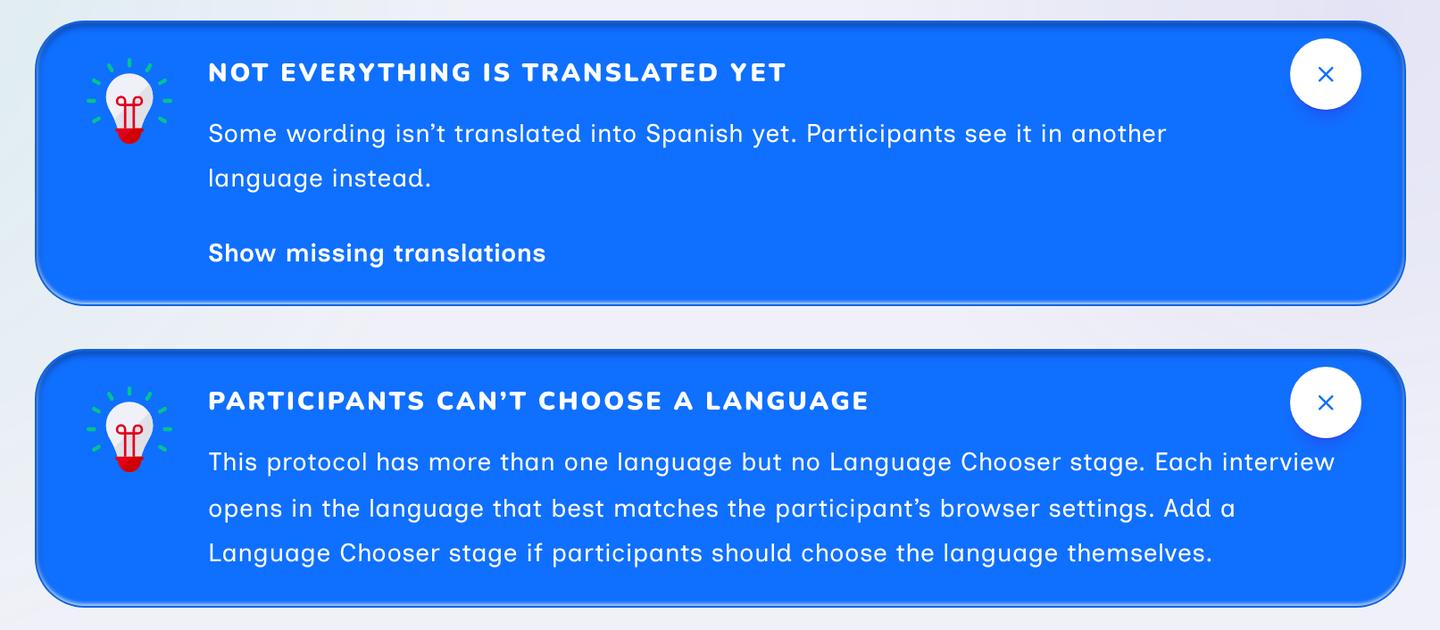
- The stage list shows a note naming the languages with missing translations. Its Show missing translations link opens the translation table on every text that lacks a translation.
- On the Languages page, each language with missing translations has a Missing translations badge. The texts a language lacks can be listed by opening the translation table and choosing, for example, Missing Spanish under Translations to show.
When a protocol has more than one language but no Language Chooser stage, the stage list shows a second note, Participants can't choose a language. Omitting a Language Chooser is a legitimate design choice, so this note can be dismissed for the protocol.
The translation table
The translation table presents every participant-facing text beside its translation into each of the protocol's languages. It opens over the Languages page from Open translation table, from a language's Edit translations button, or from any of the links described in Finding missing translations. When the table holds more texts or languages than the window can show, it scrolls, and the language names and the names of the texts remain in view.
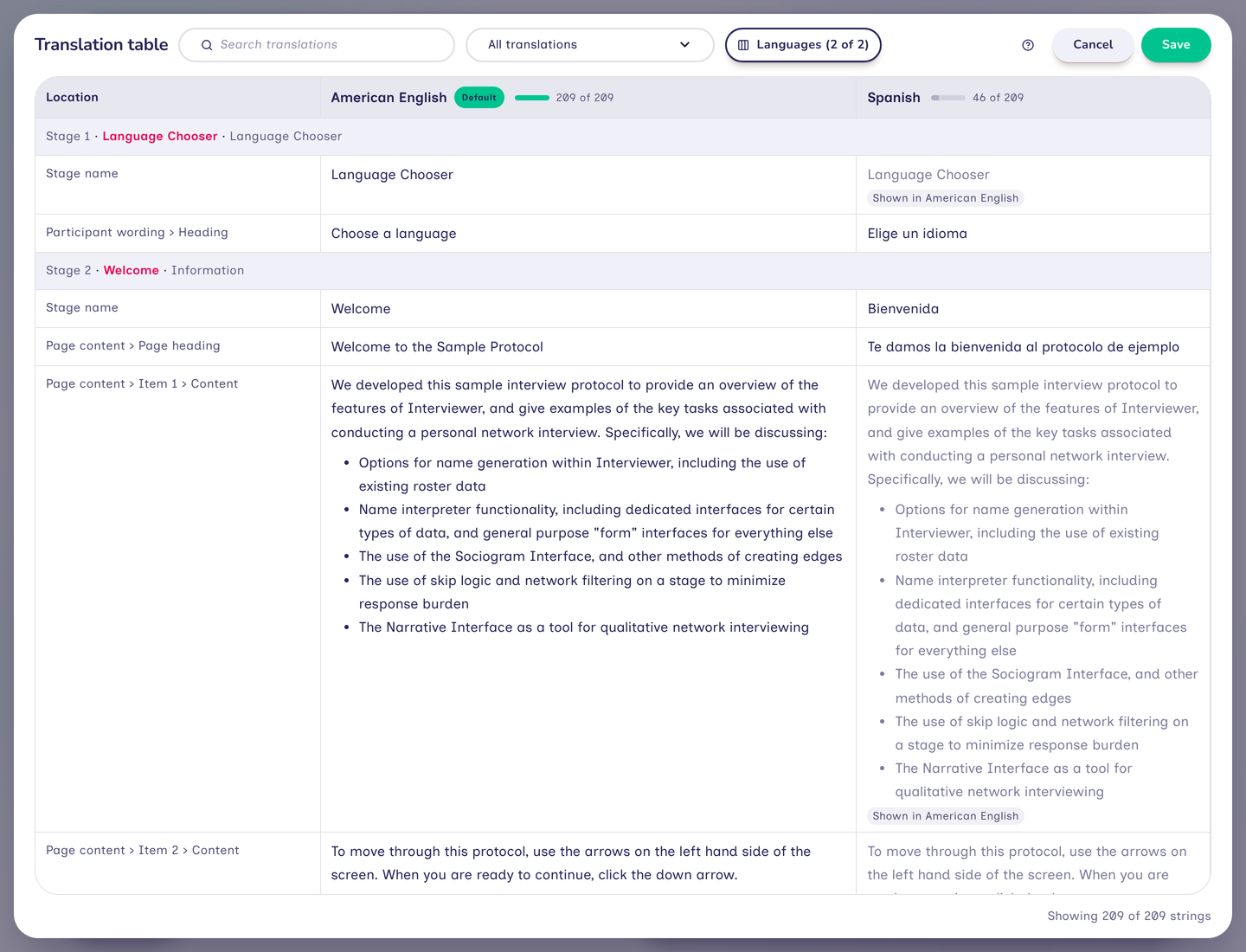
Each row is one text and each column one language, in alphabetical order. The heading of each column shows the language's name, a Default badge for the default language, and the number of texts translated into it. Rows are grouped by location: the stages in order, then the codebook, then the protocol itself, and finally the interview text. A stage's group shows its position, its name in the default language and its interface, and the stage's name is a link that opens it. Each row is named as the stage editor names the text, such as "Page content › Page heading".
A cell without a translation shows, in lighter type, the text that participants using that language will see instead, with a tag naming the language, such as Shown in American English. An asterisk after the tag indicates that participants may see the text in a different language, because the other languages in a participant's browser are tried before the default language. No asterisk appears when the text is shown in a closely related language, or when only one language has the text.
Choosing which texts and languages to show
The controls above the table determine what it shows:
- Translations to show selects All translations, Missing in any shown language, or the texts missing from one language, such as Missing Spanish. A text that is translated while this filter is active remains in view until the filter changes, so that it does not disappear during editing.
- Search translations finds texts by their location, or by their wording in any shown language.
- The Languages menu, such as Languages (2 of 2), shows and hides columns. At least one language is always shown. Translators working on one language may find it helpful to show only that language and the language they translate from, which is the view Edit translations opens.
A count beneath the table, such as "Showing 8 of 209 strings", reports how many texts are shown.
Editing translations
Selecting a cell opens it for editing. Changes remain in the table until Save is selected, and a dot in the corner of a cell marks an unsaved change. Pressing Escape in a cell restores its saved text, and deleting all of a cell's text removes the translation.
When a cell is left, Architect checks that its text can be saved and, if it cannot, the cell explains why. For example, the only translation of a text cannot be cleared unless another translation is first written in the same row. Wording that Network Canvas supplies is different (see Words Network Canvas supplies): a cell of it that is left empty goes back to Network Canvas's wording in that language. Save saves nothing while any cell has a problem; it moves to the first such cell instead, bringing it into view even if a search, filter or hidden column had concealed it.
Some texts vary according to the number or the person they refer to, such as the items of a Family Pedigree completeness checklist, or the message for a validation rule that takes a number. Such a cell lists each version, with placeholders, such as a person's name, shown as labeled pills. When the cell is opened, each version has its own labeled box. The number of versions follows the grammar of the language: a language that distinguishes one, two and five items has a version for each. Each text sets which placeholders a version must include, and the rule is the same in every language. The button that inserts a placeholder is highlighted while a version still requires it, and leaving the cell names any placeholder that is missing. A version used for a single number, such as English "one item", may omit the number.
Researchers' own text can also show values, such as the participant's name. Showing a value is optional in every language, so a translation may leave out a value that the default language's text shows (see Translating text that shows values).
Formatted text, such as the content of an Information stage, is displayed as participants will see it until the cell is opened. It then shows the same formatting controls as the stage editor, which remain in view while a long text is scrolled.
The table can be navigated with the keyboard:
| Key | Effect |
|---|---|
| Enter | Moves to the next row in a single-line text; starts a new line in a text with line breaks. |
| Ctrl+Enter, or ⌘+Enter on a Mac | Moves to the next row. |
| Up and down arrows | Move to the row above or below, from the first or last line of a cell. |
| Tab | Moves to the next cell. In formatted text, it moves to the formatting controls first, and in a list it indents the item. |
| Escape | Restores the cell's saved text. |
The help button (a question mark) above the table summarizes these keys. Save applies every change at once and closes the table, and a single Undo reverses the whole save. Cancel closes the table without saving, after asking for confirmation if there are unsaved changes. Pressing Escape outside a cell, or clicking outside the table, does not close it, and Architect also asks before discarding unsaved changes when the browser's Back button is used or the page is reloaded.
Translating within the stage editor
A text can also be translated where it is written, in the stage editor. When a protocol has more than one language, each text field has a language menu showing the language being edited, followed by badges for Default and for the number of missing translations. All of the fields in an editor change language together, so that a stage can be worked through one language at a time. The editor always opens in the default language, and its previews show text in the language being edited.
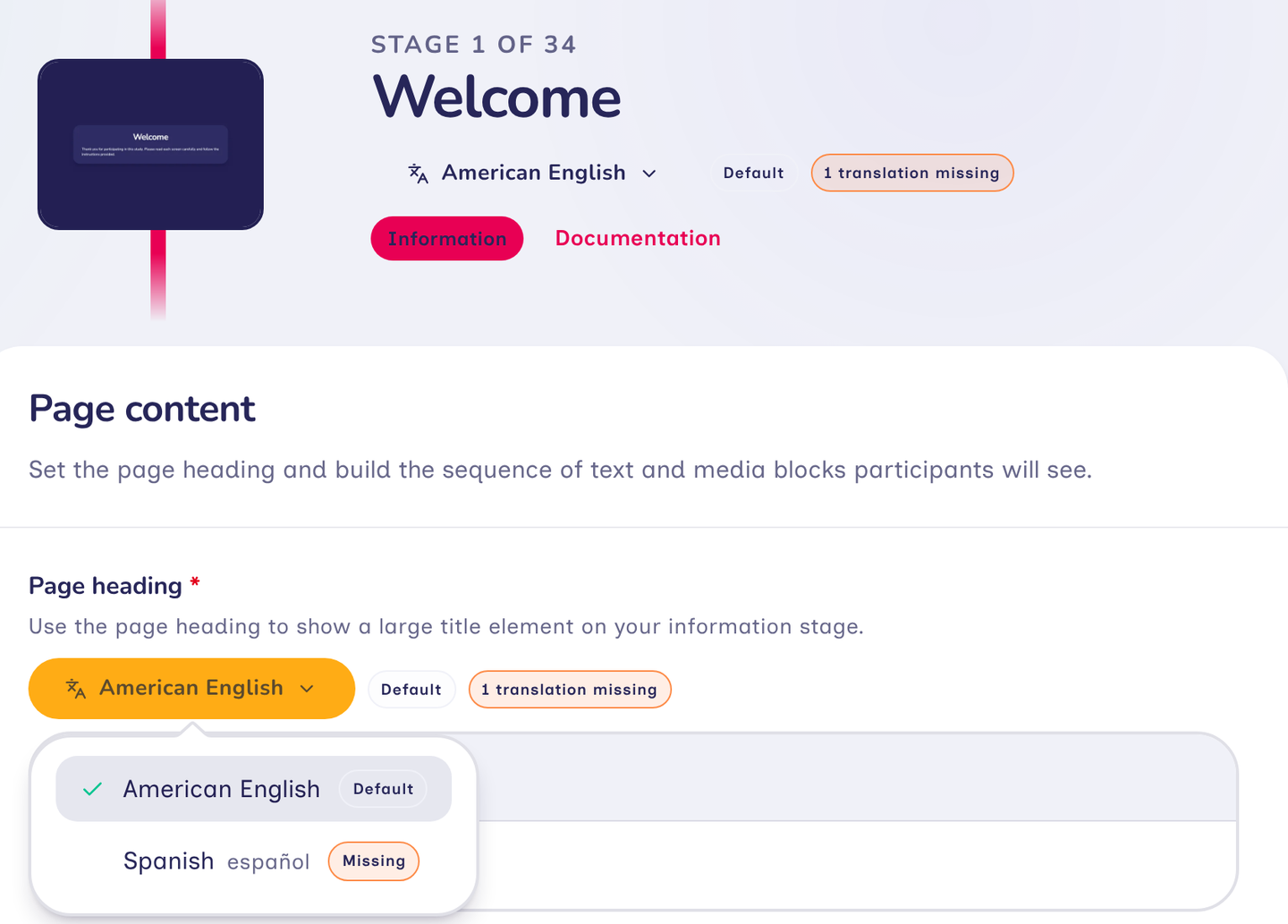
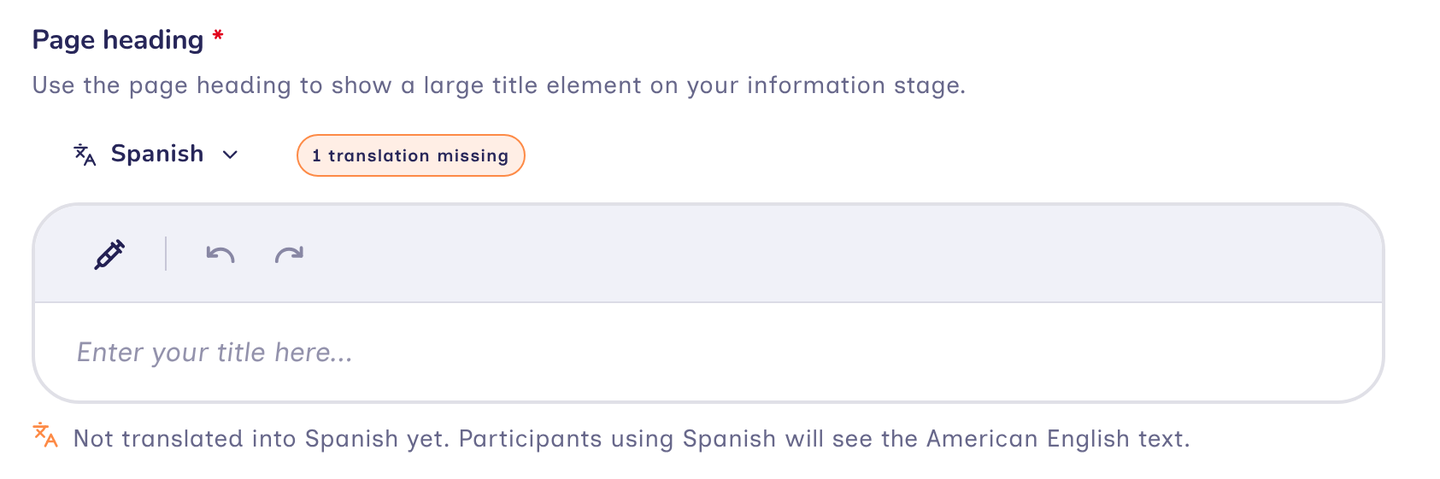
Under a text that has no translation in the language being edited, a note names the language in which participants will see it instead, such as "Not translated into Spanish yet. Participants using Spanish will see the American English text." Where another of the protocol's languages also has the text and is not closely related, the note adds that participants may see that language if their browser lists it.
A protocol with only one language shows no language menus.
Labels in a Narrative stage's legend
A Narrative preset can highlight nodes that have one or more true-or-false attributes, and draw one or more edge types. During the interview, the preset switcher lists these attributes and edge types by label. In the Narrative stage editor, each attribute and edge type ticked under Node highlighting and Connections has a Label for "…" field, which starts as the attribute's or edge type's name and has a language menu like any other text. Every highlighted attribute and drawn edge type requires a label.
Labels for Network Composer edge types
Each edge type that a Network Composer stage allows participants to draw has a label, by which participants choose the edge type in the stage's toolbar and which titles the form for that kind of edge. The label is written in the stage editor beneath the edge type. If left empty, it starts as the edge type's name, and it has a language menu like any other text.
Words Network Canvas supplies
In addition to the researcher's own text, an interview shows wording that Network Canvas supplies. A protocol does not hold this wording unless it has been changed: the interview shows Network Canvas's wording for each item, in each language Network Canvas has it in. Each item can be reworded and translated like any other text, and the protocol then holds the changed wording. A translation that reads exactly as Network Canvas words it is not kept. To go back to Network Canvas's wording for one item in one language, clear its cell in the translation table: the cell shows Network Canvas's wording again when it is left, and the protocol no longer holds wording of its own there. The wording falls into two groups, according to where participants encounter it.
Stage wording
Some wording belongs to a particular kind of stage, such as the button that finishes the interview, or the notice that a Name Generator's minimum has not been reached. This wording is a setting of the stage, so a protocol shows only the wording of the stages it uses, and only that wording needs translating into a language Network Canvas has no wording in. Each setting is found in the stage editor's Customize built-in wording section and, in the translation table, under its stage:
| Stage | Contents |
|---|---|
| Finish Screen | The finish button, the confirmation question and the message shown when finishing fails |
| Name Generator, Quick Add and Roster | The minimum and maximum notices, the quick-add placeholder and, on a roster, the "nothing left to add" notice and the label of an entry without a name |
| Geospatial | The label for places outside the selectable areas |
| Narrative | The panel headings |
| Narrative Pedigree | The first choice of the condition menu, the snapshot button and the headings of snapshots |
| Family Pedigree | The participant's own name, and the wording for connecting people and adding a family member |
| Categorical Bin and Ordinal Bin | The notice shown when a participant tries to continue before placing every node |
| Language Chooser | The heading above the list of languages |
Some of this wording can show values the interview fills in. Each such value is a labeled pill in the field, inserted with the field's piped text button: the number of nodes in a minimum or maximum notice, the name of the stage's node type (as the codebook names it) in the name generator and bin notices, and the condition's name in a Narrative Pedigree's key. A Family Pedigree's name for the participant can also show an attribute of the participant, such as a name given on an earlier Ego Form (see Piped text).
The Customize built-in wording section can be switched off. While it is off, the stage uses Network Canvas's wording in every language, and switching it off puts that wording back, after asking, if any of it has been changed. The section starts switched on when the protocol has more than one language, so that wording still to be translated is in view, and when the stage's wording has already been changed. A stage with no wording to customize, such as a Name Generator with no minimum or maximum, has no such section.
Some kinds of stage also show wording that is the same on every stage of that kind (see Interview text). Their section then has two parts, each opened and closed by clicking its heading: Specific to this stage and Shared by every stage of this kind. The shared wording can be changed there too. A change to it applies to every stage that shows it, and is saved as soon as you leave the field, not when you save the stage. Switching the section off puts back Network Canvas's shared wording too.
A stage offers only the wording it can show. Wording that applies only while part of a stage is enabled, such as a name generator's minimum notice, or a bin's notice while Require every node to be placed is switched on, is offered only while that part is enabled. Architect shows it, with Network Canvas's wording in each of the protocol's languages, when the part is enabled, and removes any changed wording when the part is disabled.
Interview text
Other wording is shared across stages and therefore belongs to the interview as a whole. It is the protocol's interview text, and a protocol shows only the parts of it that its stages and codebook use:
- Interview navigation. The Back and Continue buttons, and the Exit interview button with its explanation.
- Buttons. Cancel, and the buttons that copy the details of an error. A protocol with a Name Generator shows Done, which closes its form, and one with a Family Pedigree or Network Composer shows Delete. A protocol shows the Yes and No answers when a question is answered with them: a Dyad Census, a Family Pedigree, a yes-or-no attribute, or a roster card that shows one. The Yes answer also confirms the discarding of changes, so a protocol that can ask that shows Yes too. A protocol with a Family Pedigree also shows Save, Undo, Redo, Skip and the "Don't know" answer, one with a Family Pedigree or Narrative Pedigree shows Zoom in and Zoom out, and one with a Sociogram or Narrative stage that uses automatic layout shows the tooltips of the buttons that pause and resume the layout.
- Messages. The message shown when a stage could not be displayed, the name given to someone left unnamed, and a general error message shown whenever something goes wrong without a more specific message, including when a form could not be submitted. A protocol with an Information stage that shows a file also shows the message shown when the file could not be displayed. A protocol whose name generator reads a network data file, in a side panel or a roster, also shows the loading message and the message shown when that file could not be loaded.
- Search. The placeholder of a search box and the message shown when a search matches nothing. Every protocol shows these, because the interview's list of screens can be searched.
- Passphrase wording. The wording that requests, confirms and explains a passphrase. A protocol shows this only when it encrypts an attribute or includes an Anonymisation stage. The messages shown when answers protected by the passphrase are locked or unavailable are shown only while it encrypts an attribute, and the message that the passphrase was accepted only while it includes an Anonymisation stage, where the passphrase is chosen.
- Forms. The question and explanation of the confirmation that asks whether to discard changes. A protocol shows these only when it has an Ego Form, Per Alter Form or Per Alter Edge Form stage, or a Network Composer stage with a form.
- Validation messages. The message a participant sees when an answer breaks a rule, such as a value that is too large or a required answer that is missing. Each rule has one wording, shared by every question that uses it, and a protocol shows only the messages of the rules it uses.
- Interviewer controls. The wording only an interviewer sees, such as leaving a review of a finished interview and showing a screen that earlier answers have hidden.
- Wording shared by every stage of one kind. A protocol with a Family Pedigree or Narrative Pedigree stage shows the descriptions of the zoom buttons and the name and description of the button that shows the whole family. One with a Family Pedigree also shows the names, descriptions and hints of its tools, the descriptions of its Undo and Redo buttons, the checklist item for all details while a Family Pedigree checks completeness, and, while a Family Pedigree lets participants choose the words for their family, the question that asks them and the toolbar button that changes it. One with a Narrative Pedigree shows the heading and entries of its key, which can show the condition's name, and the tooltip of the button that clears the focus. Buttons that any stage might show, such as Undo or Zoom in, are named once among the buttons above, so every stage that shows them uses the same words. One with a Categorical Bin that places nodes by tapping shows "Place here", one with a Name Generator (quick add) shows the hint that tells participants how to finish adding a node, one with a Narrative whose drawing is switched on shows the tooltips of its drawing tools, one with a Geospatial stage shows the offline notice, the message shown when the map is unavailable and, while a map allows search, the message shown when a search could not run, and one with a Network Composer shows its wording, some of it only while a Network Composer stage is set up to show it. It can be changed in the translation table, or under Shared by every stage of this kind in the Customize built-in wording section of any stage that shows it. Either way, the change applies to every stage that shows it.
Architect lists the wording a protocol shows as the protocol is built: enabling a validation rule lists its message, and removing the last use of a rule takes it off the list. Wording that has been changed is kept for as long as the protocol shows it, and removed when it no longer does.
In the translation table, the interview text forms the final group, Interview text, and each row is named for the wording it holds. Apart from the wording shared by every stage of one kind, the translation table is the only place where this wording can be changed, so a protocol with a single language keeps Network Canvas's wording for the rest.
Previewing a language
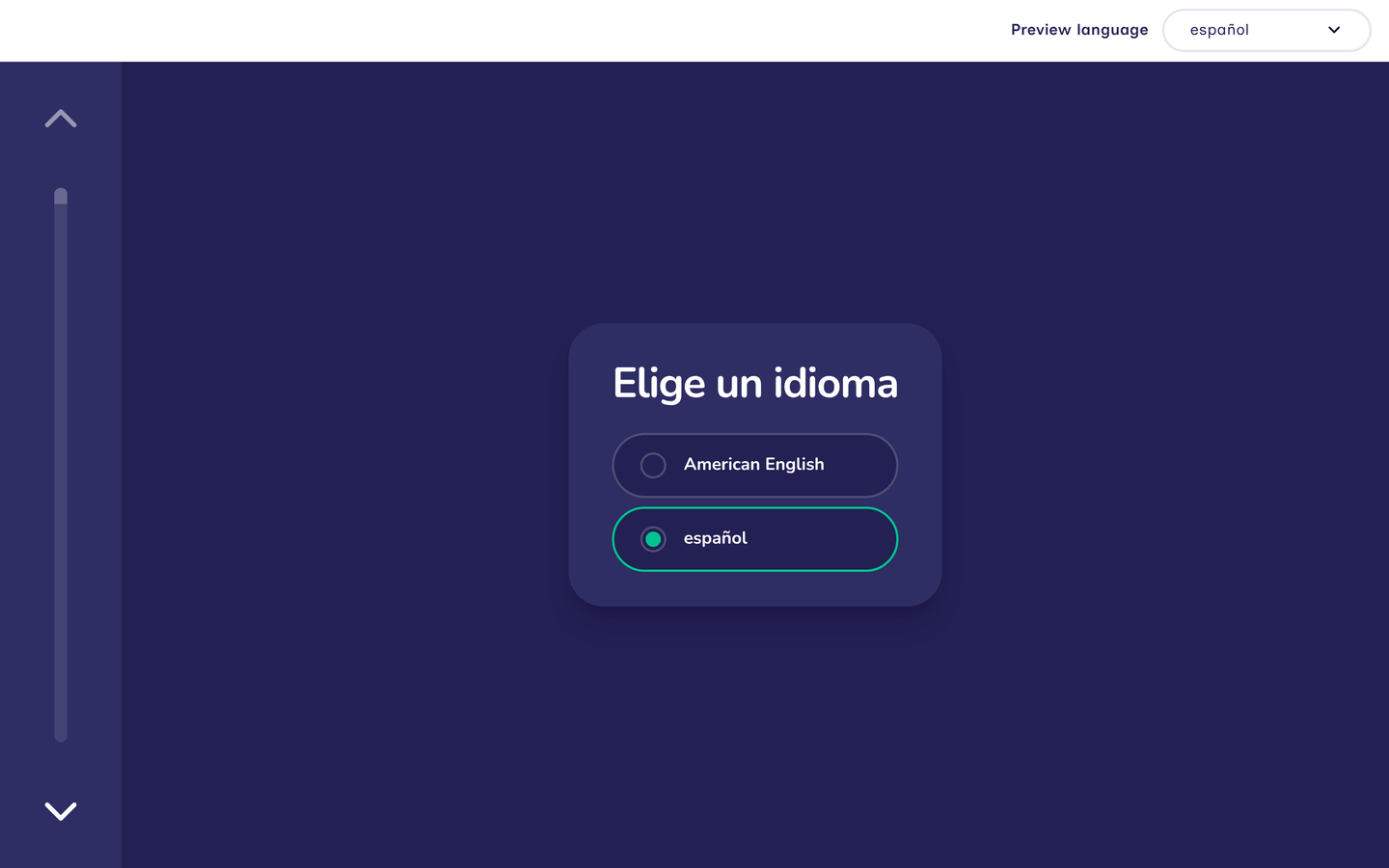
Preview mode shows a stage as participants will see it, in a language chosen from the Preview language menu above the preview (see Choosing the preview language). A text with no translation in the preview language appears as it would to a participant using that language. Previewing each stage in each language allows the team to check a translation, including the length of translated text, before it is pretested with participants.
Printing your translations
The Summary tab presents the whole protocol on one page, which can be printed with the Print button. When a protocol has more than one language, the summary shows every text in each of the protocol's languages, listed alphabetically, with the default language marked Default, and its cover lists the protocol's languages. Where a text has not yet been translated into a language, the summary says so and names the language that participants will see instead. Where the summary refers to a text listed elsewhere in it, such as a stage name in its contents, it uses the default language.
The printed summary can be submitted to an ethics committee for review.
How participants get their language
When an interview starts, it uses the first language in the participant's language settings that the protocol is written in, counting close regional matches. A participant whose browser is set to Mexican Spanish (es-MX) is therefore shown Spanish (es) text, and one set to European Portuguese (pt-PT) is shown Brazilian Portuguese (pt-BR) text. If none of the participant's languages matches, the interview uses the default language. Wherever the protocol has no translation in that language, the participant sees another language's translation (see The default language and which translation participants see).
The source of these settings depends on the application:
- Fresco uses the languages set in the participant's web browser. The language of the Fresco dashboard does not affect interviews.
- Interviewer uses the language settings of the device or browser on which it runs. Interviewer's own App language setting does not affect interviews.
A Language Chooser stage allows participants to choose for themselves, and is the only means of changing the language during an interview. It lists the protocol's languages alphabetically, each in its own language. Once a participant has chosen, the interview keeps the choice until the browser tab is closed, even after the page is reloaded. The choice is not saved with the interview, so an interview opened in a new tab, or resumed on a different device, selects its language again until the participant chooses.
Everything the interview shows comes from the protocol, including its stage wording and interview text, so a participant reads the whole interview in one language. Only the words that screen readers read are always in English.
When the interview is shown in a right-to-left language, such as Arabic or Hebrew, its stages are laid out from right to left. A family drawn on a Family Pedigree or Narrative Pedigree stage is not mirrored, because a family tree is drawn the same way round in every language.
Languages in your data
The language in which an interview was shown is neither saved with the interview nor included in exported data. Answers, the values of categorical and ordinal options, and the names of node types, edge types and attributes are the same whichever language the participant read.
Where the language of administration is analytically relevant, for example when testing whether a measure behaves equivalently across language groups, it should be recorded explicitly. One approach is a question in an Ego Form, completed by the participant or the interviewer, that records the language in which the interview was conducted.
Recommended practice
Plan the protocol's languages before writing it. Write the source text with translation in mind, avoiding idioms and culturally specific examples that have no counterpart in the other languages.
Use a documented, team-based translation procedure, and record the decisions made during review and adjudication. Name generators and response categories warrant particular scrutiny, because they determine which relationships are reported and how they are classified.
Pretest the protocol in every language with members of the population who will take it, using preview mode or a test deployment, before data collection begins.
Complete every translation before fielding the protocol. The translation table's Missing in any shown language view lists any that remain.
Avoid relying on machine translation without review by fluent speakers who understand the study's constructs. Such output may read fluently while changing the meaning of a prompt.
Avoid changing a protocol's structure in response to a problem found in one language without considering its effect on the others. Every language shares the same stages and codebook, so a structural change applies to all of them.
References
- Bailey S, Marsden PV. Interpretation and interview context: examining the General Social Survey name generator using cognitive methods. Social Networks. 1999;21(3):287–309.
- Beaton DE, Bombardier C, Guillemin F, Ferraz MB. Guidelines for the process of cross-cultural adaptation of self-report measures. Spine. 2000;25(24):3186–3191.
- Brislin RW. Back-translation for cross-cultural research. Journal of Cross-Cultural Psychology. 1970;1(3):185–216.
- Ruan D. The content of the General Social Survey discussion networks: an exploration of General Social Survey discussion name generator in a Chinese context. Social Networks. 1998;20(3):247–264.
- Survey Research Center. Translation: overview. In: Guidelines for Best Practice in Cross-Cultural Surveys. Ann Arbor: Survey Research Center, Institute for Social Research, University of Michigan; 2016.
- Walde P, Völlm BA. The TRAPD approach as a method for questionnaire translation. Frontiers in Psychiatry. 2023;14:1199989.
- Wild D, Grove A, Martin M, et al. Principles of good practice for the translation and cultural adaptation process for patient-reported outcomes (PRO) measures: report of the ISPOR Task Force for Translation and Cultural Adaptation. Value in Health. 2005;8(2):94–104.